Squarespace runs your one-line snippet inside a Code Block. Add the block, paste the line, drag it where you want the hex, save. About two minutes. We tested every placement on a real Squarespace 7.1 site while writing this, and the "on the live page" pictures are captures from it.
Edit → Add Block → Code → paste the snippet (Type: HTML) → drag the block into place → Save → Exit → check the live page.
Floating hex on every page? In the left panel go to Website → Website Tools → Code Injection, paste into Footer, click Save. (Older dashboards: Settings → Advanced → Code Injection.)
Which plan you need
Squarespace decides what a Code Block may contain by plan. This is the whole story, taken from their current plan table and confirmed on a live site:
| Plan | One-line snippet in a Code Block | Code Injection (site-wide) | Iframe in an Embed block |
|---|---|---|---|
| Trial | No: "Adding JavaScript and iframe embeds is a Premium Feature" (as of September 2026; Squarespace's help says trials include most premium features, so try the Code block first) | No | Yes |
| Basic | No ("Code block, basic" strips scripts) | No | Yes |
| Core | Yes | Yes | Yes |
| Plus, Advanced | Yes | Yes | Yes |
So: on Core or above, every placement below works exactly as written. On Basic, skip to the iframe way; it needs no upgrade and takes the same two minutes. On a trial, try the Code block first, and if Squarespace shows the Premium Feature message, use the iframe way.
Squarespace disables most embedded scripts while you edit and shows a grey "Embedded scripts" card in their place. (On Core we did see the hex render live on an image, but treat that as a bonus.) Save, click Exit, then view the page as a visitor would. If you judge from the editor you will chase a problem that does not exist.
Get your snippet from the VANE it dashboard: open the vane, find Embed on your site, pick a placement, hit Copy code. It is one line:
<script async src="https://vaneit.com/embed.js" data-vane="your-vane-id"></script>
Choosing where the hex goes
Two things decide the position. Where you drag the Code block decides the neighbourhood. The data-place value decides the exact spot inside it: a corner of the block, its centre, or, for the floating options, a corner of the browser window regardless of where the block is.
| data-place="over-tl" | Top-left of the block |
| data-place="over-tr" | Top-right of the block |
| data-place="over-c" | Dead centre, like a play button |
| data-place="over-bl" | Bottom-left of the block |
| data-place="over-br" | Bottom-right of the block |
| data-place="float-bl" | Bottom-left of the browser window |
| data-place="float-br" | Bottom-right of the browser window |
| data-place="section" | Open card filling the block (make the block wide) |
| (none) | Hex in the flow, centred in the block |
The block is the reference, not the page. To pin the hex to a photo's corner, drag the block on top of the photo and stretch it to the photo's edges (Squarespace 7.1 only). To put the hex mid-paragraph, park a small block beside the text.
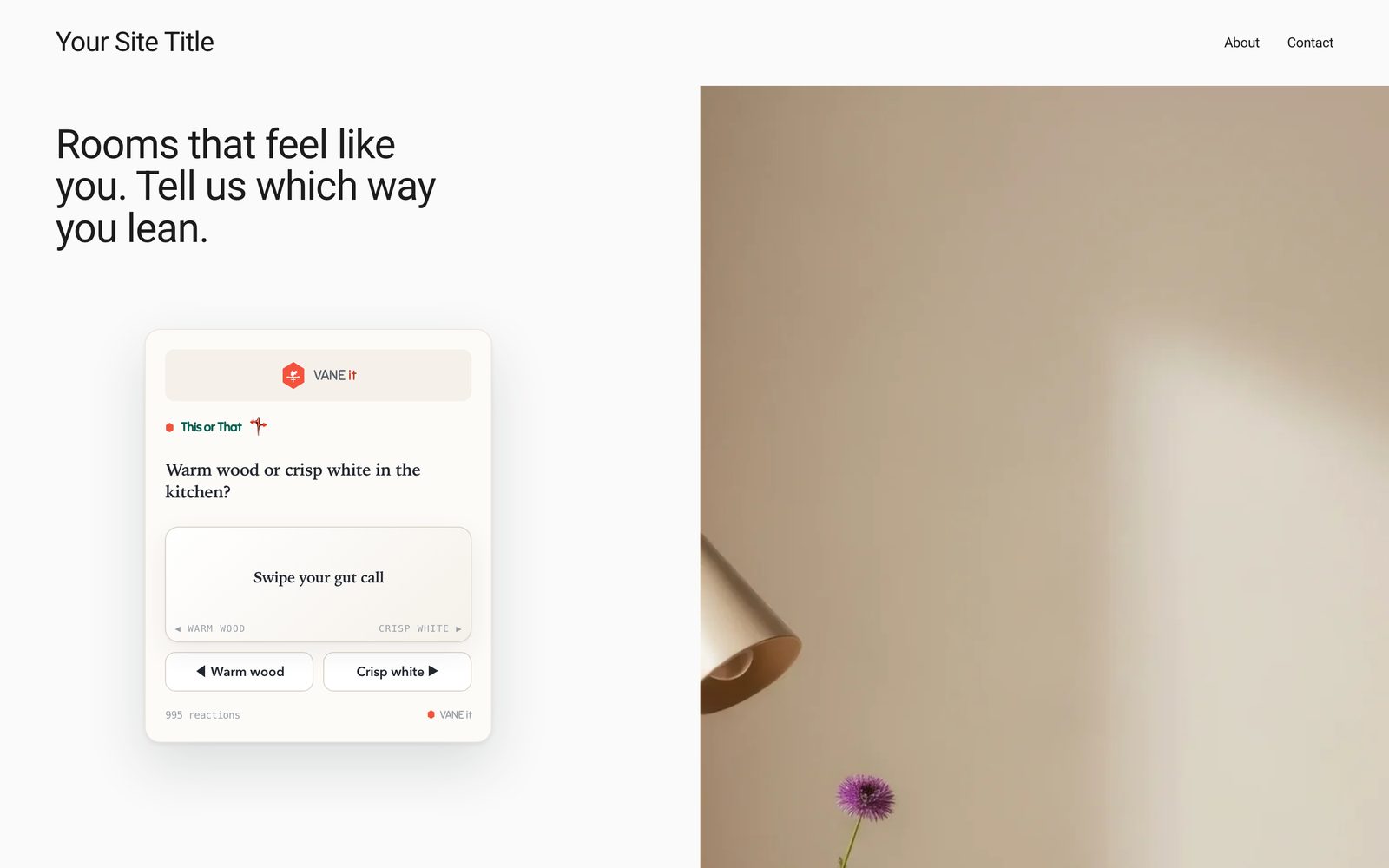
Inline, in a page
no placement attribute
The hex sits wherever you put the Code block, in the flow of the page. Start here: it is the placement least likely to surprise you.
- Open the page and click Edit.
- Hover the section and click Add Block (top-left of the section).
- Type Code in the search box and choose Code.
- Click the pencil, delete the sample text, paste your snippet. Leave Type on HTML and Display Source off.
- Drag the block where you want the hex to sit, then Save and Exit.
The block shows a grey "Embedded scripts" card in the editor. That is normal. Size the block about 60 by 60 pixels: the hex is 44 pixels wide and centres itself in whatever box you give it.
Did it work? The hex is exactly where the block sits: on our page it perches above the "Explore Our Packages" heading like a small mark of punctuation. Tap it and the card opens on top of the page.

On an image, in the corner you choose
data-place="over-br" (over-tl, over-tr, over-bl, over-br or over-c)
The hex pins to a corner of the Code block and floats over whatever is under it. On Squarespace 7.1, Fluid Engine (Squarespace's drag-anywhere editor) lets blocks overlap, so you can drag the Code block on top of the image.
- In your dashboard, pick the corner you want under On an image and copy that snippet (or edit the attribute by hand using the table below).
- Click Edit, add a Code block and paste the snippet as above.
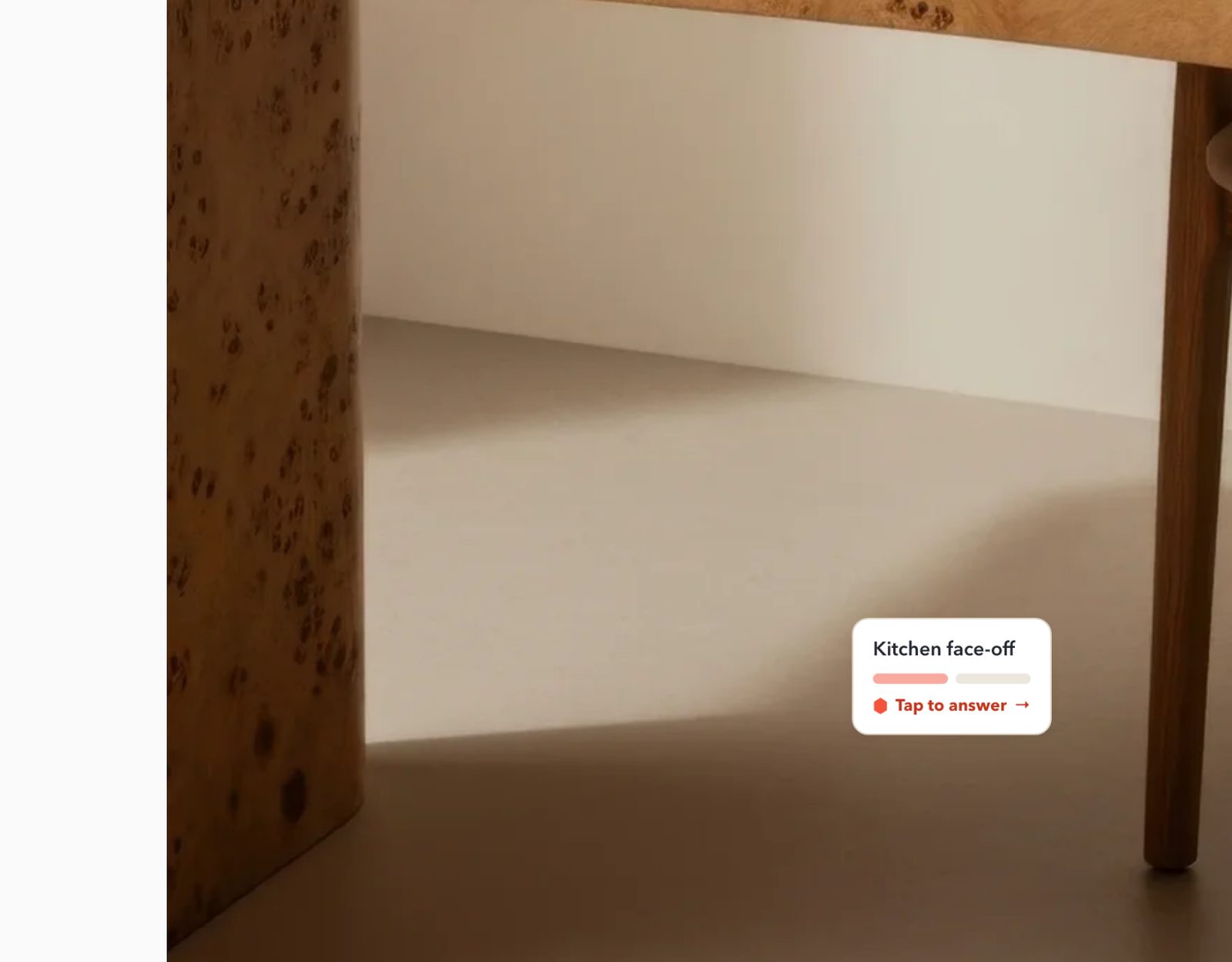
- Drag the Code block on top of the image and stretch it to the image's edges (Squarespace 7.1 only). The hex then lands in the picture's own corner.
- Save, Exit, and check the live page.
On the Core plan we sometimes saw the hex render live on the image while still editing, which makes positioning easier. If you only see the grey card, save and look at the live page.
Did it work? The trigger sits on the photo in the corner you picked. On our page the hero photo runs down the right-hand side and the Kitchen face-off mini card sits near its bottom-right corner. Check it on a phone too: in our capture the mini card slipped partly below the photo (see "And on a phone" below).
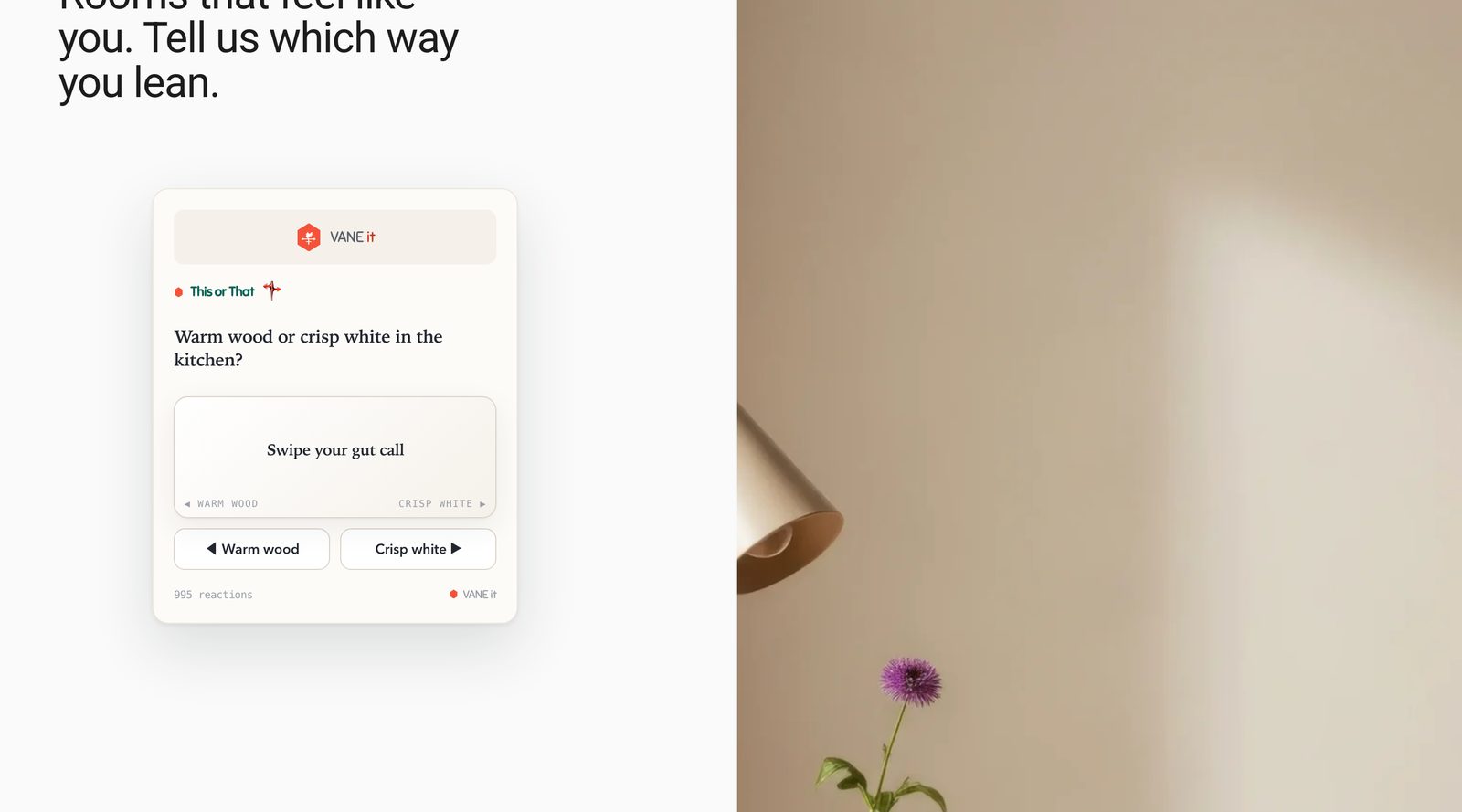
A full open card
data-place="section"
The card renders already open, votes live, with no button to press. Treat it like a signup box: give it room.
- Click Edit, add a Code block and paste the snippet with the section placement.
- Drag the block's side handles until it is at least half the section width. The card fills the block, so a narrow block means a narrow card.
- Give it its own row rather than squeezing it beside a paragraph.
- Save, Exit, check the live page.
Our first attempt used a four-column block and the card came out tall and thin. Eight columns of Squarespace's 24-column grid is a comfortable width on desktop; it goes full width on phones automatically.
Did it work? The card is open with the question and answer buttons showing, and tapping an answer reveals the tally immediately. We put it directly under the hero headline ("Tell us which way you lean"), so the headline asks and the card answers.
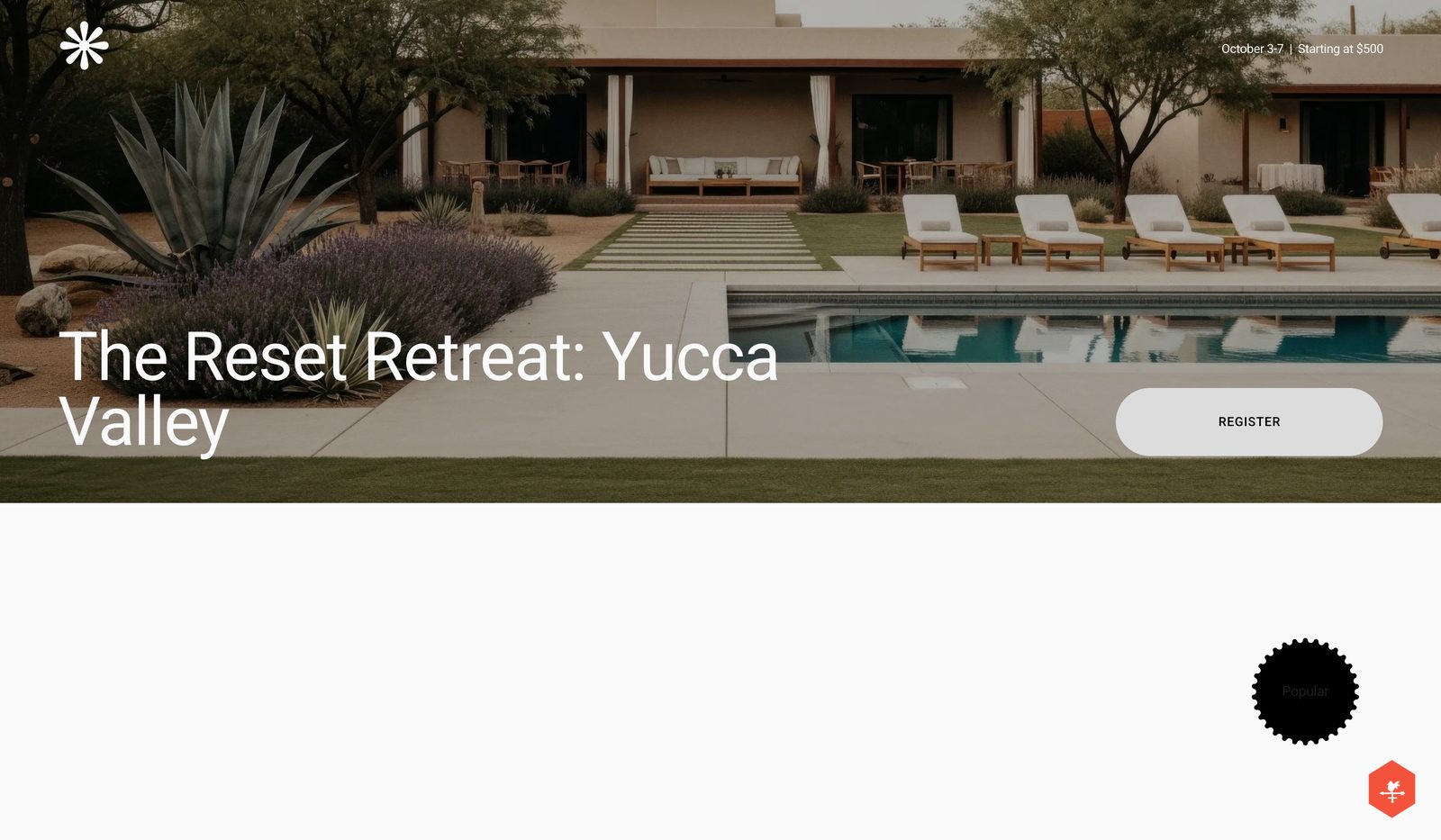
Floating in the corner of the window
data-place="float-br" or "float-bl"
The hex pins to the bottom corner of the browser window and follows the scroll. Bottom-right or bottom-left, your choice.
- For one page: add a Code block anywhere on that page and paste the floating snippet. Where the block sits does not matter; the hex ignores it and goes to the window corner.
- For every page of the site: in the left panel go to Website → Website Tools → Code Injection, paste into Footer, click Save. (Older dashboards: Settings → Advanced → Code Injection.)
- Check the live page: scroll, and the hex should stay put in the corner.
Use float-bl if your theme already has a chat bubble or cart button in the bottom-right. On phones the hex sits above the very bottom edge so it does not fight the browser bar.
Did it work? The hex is in the corner of the window on desktop and on phones, and stays there as you scroll. In the capture the visitor has scrolled down to the retreat banner and the hex is still bottom-right.
Basic plan or trial: the iframe way
the "Embed anywhere (iframe)" code from your dashboard
No script required, so it works on every Squarespace plan, including the free trial. The card renders open inside its own box. It cannot float or pin to a photo, but it counts, shares and updates exactly like the others.
- In your dashboard, open the vane and copy the code under Embed anywhere (iframe).
- Click Edit, click Add Block, search Embed and choose Embed.
- Click the pencil, choose Code snippet, click Embed Data, paste, then click outside the panel.
- Save. This one even renders inside the editor.
Change the height in the code (560 by default) if your card format is taller: rankings and tier lists want around 700.
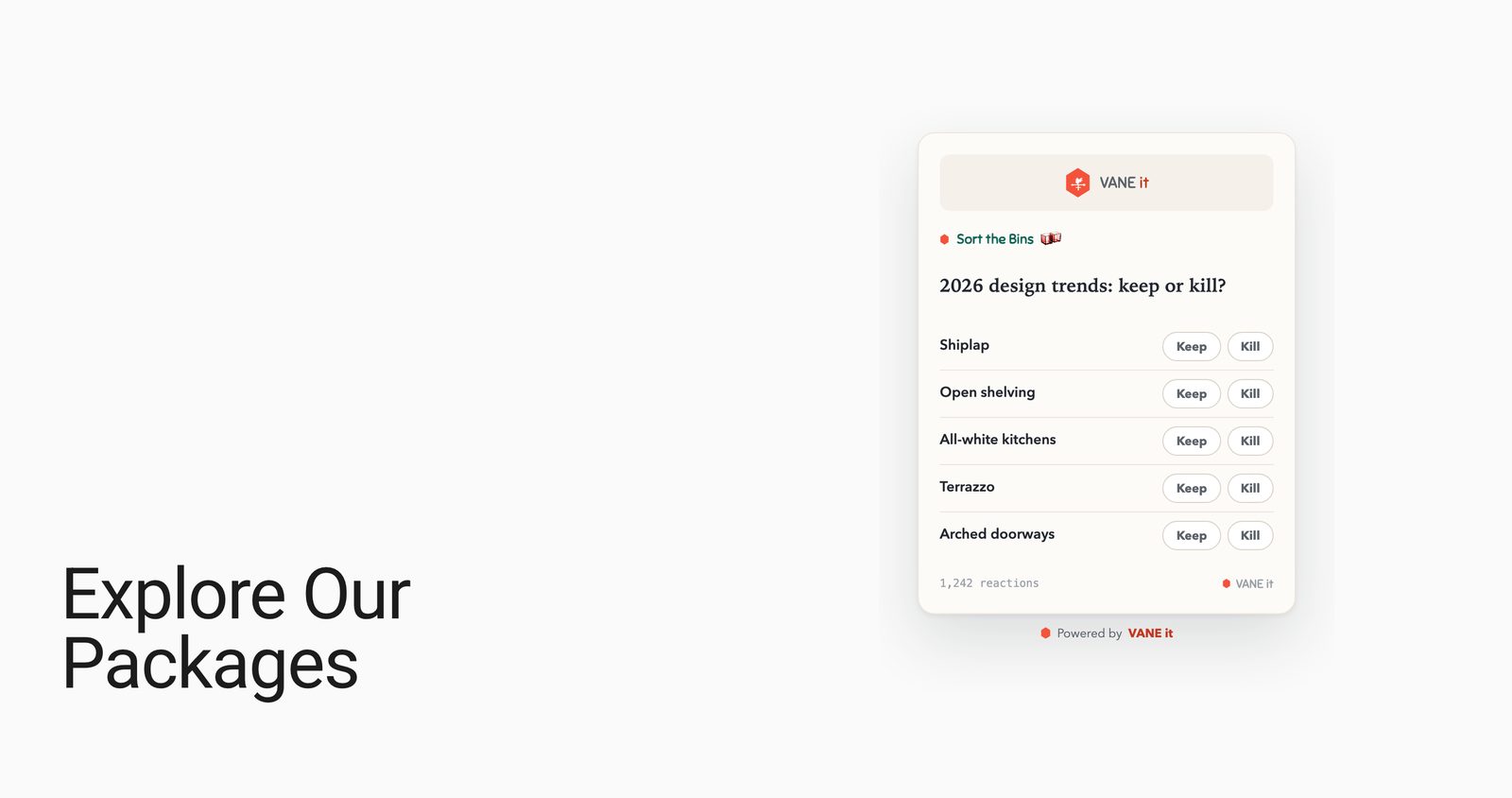
Did it work? The card appears in the block, live, in the editor as well as on the published page. Ours sits to the right of the "Explore Our Packages" heading, the way a photo would.
And on a phone
Same page, same blocks. On a phone Fluid Engine stacks everything into one column, and the floating hex keeps its corner of the screen. One honest catch from our test: the on-image mini card slipped partly below the bottom edge of the photo (left picture). If that happens on your site, switch the editor to its mobile view and drag the Code block back up inside the image, then check the live page on your phone.
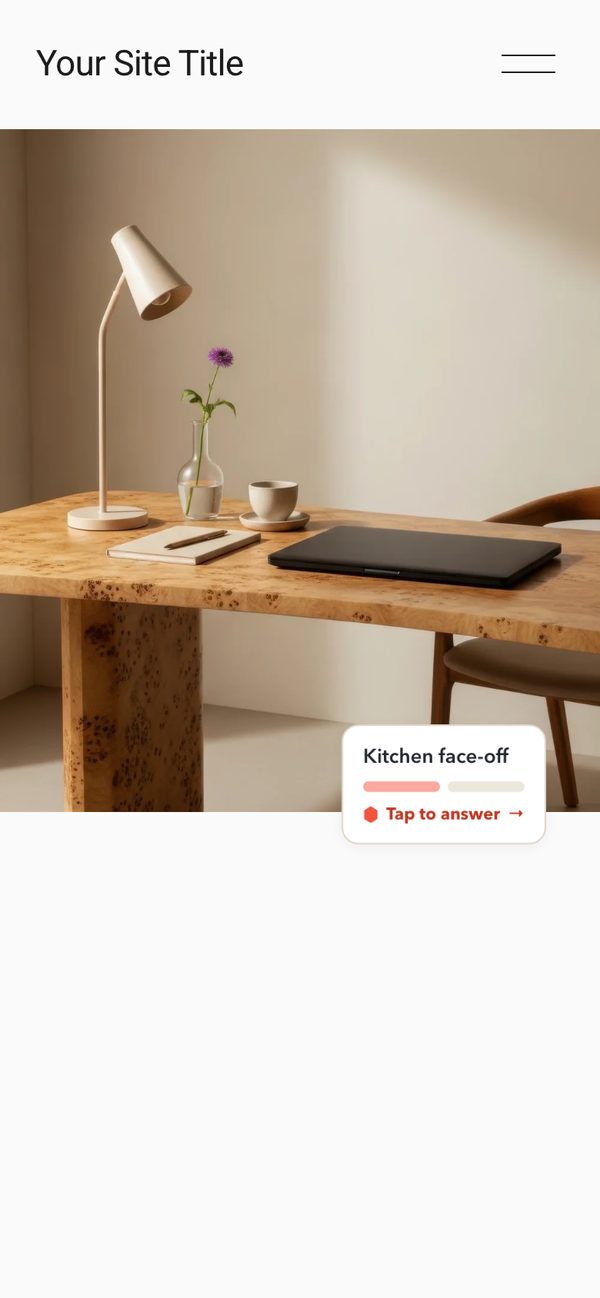
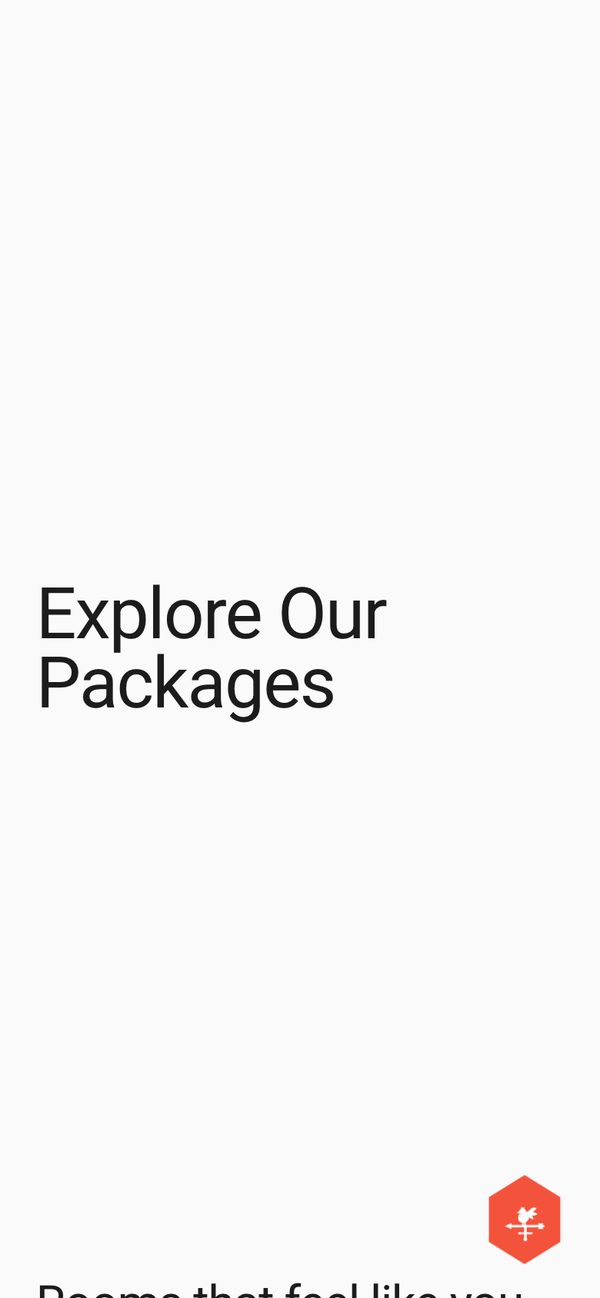
The "on the live page" images are captures of our Squarespace 7.1 test site (Core plan), September 2026. The vane questions in them were staged for this guide; the page, the placements and the engine are real. The editor panels are labelled diagrams: Squarespace's editor cannot be captured from outside a logged-in account, so we drew them rather than pass off mockups as screenshots. Every control name and step was followed exactly as written.
Common questions
Squarespace says "Adding JavaScript and iframe embeds is a Premium Feature". Now what?
You are on Basic, or on a trial that is behaving like Basic (ours did in September 2026). Basic includes "Code block (basic)", which strips scripts, so the one-line snippet cannot run. Two ways forward: upgrade to Core, where the advanced Code block and Code Injection are included and everything on this page works as written; or stay where you are and use the iframe version, which goes in an Embed block and needs no upgrade. The iframe method is the last section of this page.
The vane does not appear while I am editing the page. Is it broken?
Usually not. Squarespace disables most embedded scripts inside the editor and shows a grey "Embedded scripts" card instead. On Core we did see the hex render live on top of an image, but do not rely on it: save, click Exit, and view the live page. The live page is the only test that counts.
The hex is not in the corner I asked for.
The corner in data-place is a corner of the Code block, not of the picture. If the block is a small square sitting in the middle of the image, "bottom-right" is the bottom-right of that small square. Drag the block on top of the picture and stretch its handles to the picture's edges (Squarespace 7.1 only), and the hex lands in the picture's own corner.
The open card looks squashed.
The section placement renders the whole card inside the Code block, so the block width is the card width. Drag the block to at least half the section width (about 6 of Squarespace's 24 grid columns is the minimum that looks right; 8 or more is comfortable).
Which Squarespace version am I on?
Open Pages, scroll to the bottom; it shows your version. On 7.1, if a section's blocks will not overlap, it is a classic section: add a new blank section.
I am on Squarespace 7.0. Can I put the hex on an image?
7.0 cannot overlap blocks, so on-image corners do not work there. Use inline, section or floating.
Will it slow my site down?
No. The snippet loads one small script asynchronously, so the page renders first and the vane arrives after. The iframe version loads a single lightweight page from vaneit.com.
Can I put the same vane on several pages?
Yes. Paste the same snippet into a Code Block on each page. One vane id means one shared tally across all of them, which is usually what you want. For a floating button on every page at once, use Code Injection instead of a block: in the left panel go to Website → Website Tools → Code Injection, paste into Footer, click Save. (Older dashboards: Settings → Advanced → Code Injection.)
How do I remove a vane?
Edit the page, click the block, and click the trash icon in its toolbar. The tally and every reaction stay safe in your VANE it dashboard.
I edited the vane in my dashboard. Do I need to update Squarespace?
No. The snippet is permanent. Question, design, and trigger changes flow to every embed automatically, usually instantly.
Two minutes from your first reaction
Build a vane, copy one line, drop it in a Code Block, drag it into place. Then check the live page.
Start free Other platforms