Adding a vane to Shopify takes about two minutes and needs no app. Shopify has a built-in Custom Liquid block that runs your one-line snippet anywhere in a theme: on a product photo, inline in a page, floating in the corner, or as a full section. There is nothing to install and nothing extra to pay for.
Online Store → Themes → Edit theme → Add section (or Add block) → Custom Liquid → paste your snippet → Save (or Publish). Your vane appears on the storefront.
Before you start
- A Shopify plan with the theme editor. Basic or higher, or the free trial. The Starter plan has no theme editor, so none of these steps are available on it.
- Your vane is live. Set it live in your VANE it dashboard. A vane that is not live shows nothing on your store.
- Your store's password page. If your store still has its password page on, visitors (and you, when logged out) only see the vane after entering the password. To open the store to everyone, remove the password page under Online Store → Preferences.
No vane yet? Start free, build one, then come back.
Get your snippet
In your VANE it dashboard, open the vane, find Embed on your site, pick a placement, and hit Copy code. It is one line:
<script async src="https://vaneit.com/embed.js" data-vane="your-vane-id"></script>
The placement you pick in the dashboard adds a data-place attribute to that line. Everything on this page is the same snippet with a different placement value.
The Custom Liquid block does all of it
Shopify will not run a script pasted into a rich text field, a product description, or a page body. It strips it out on save. What it will run is Custom Liquid, a block built into Shopify's own free themes (Horizon, Dawn and the rest) and most modern paid themes. It renders whatever you put in it, scripts included.
Learn that one control and every placement below is the same four clicks with a different snippet.
Choosing where the hex goes
Two things decide the position. Where the Custom Liquid block sits decides the neighbourhood. The data-place value decides the exact spot: a corner of the box the snippet is in, its centre, or, for the floating options, a corner of the browser window regardless of where the block is.
| data-place="over-tl" | Top-left of the picture |
| data-place="over-tr" | Top-right of the picture |
| data-place="over-c" | Dead centre, like a play button |
| data-place="over-bl" | Bottom-left of the picture |
| data-place="over-br" | Bottom-right of the picture |
| data-place="float-bl" | Bottom-left of the browser window |
| data-place="float-br" | Bottom-right of the browser window |
| data-place="section" | Open card filling the box |
| (none) | Hex in the flow, exactly where the snippet is |
"The box" is whatever element the snippet is inside. For a photo, that means the picture and the snippet share one Custom Liquid block, as shown in the photo section below.
If Add section in the theme editor offers Custom Liquid, everything here applies. The Custom Liquid block is built into Shopify's own free themes (Horizon, Dawn and the rest) and most modern paid themes.
On an older vintage theme there is no Custom Liquid block. Use the Edit code route instead. It works on every theme, and you can place the snippet in a template rather than the layout if you only want it on one page type.
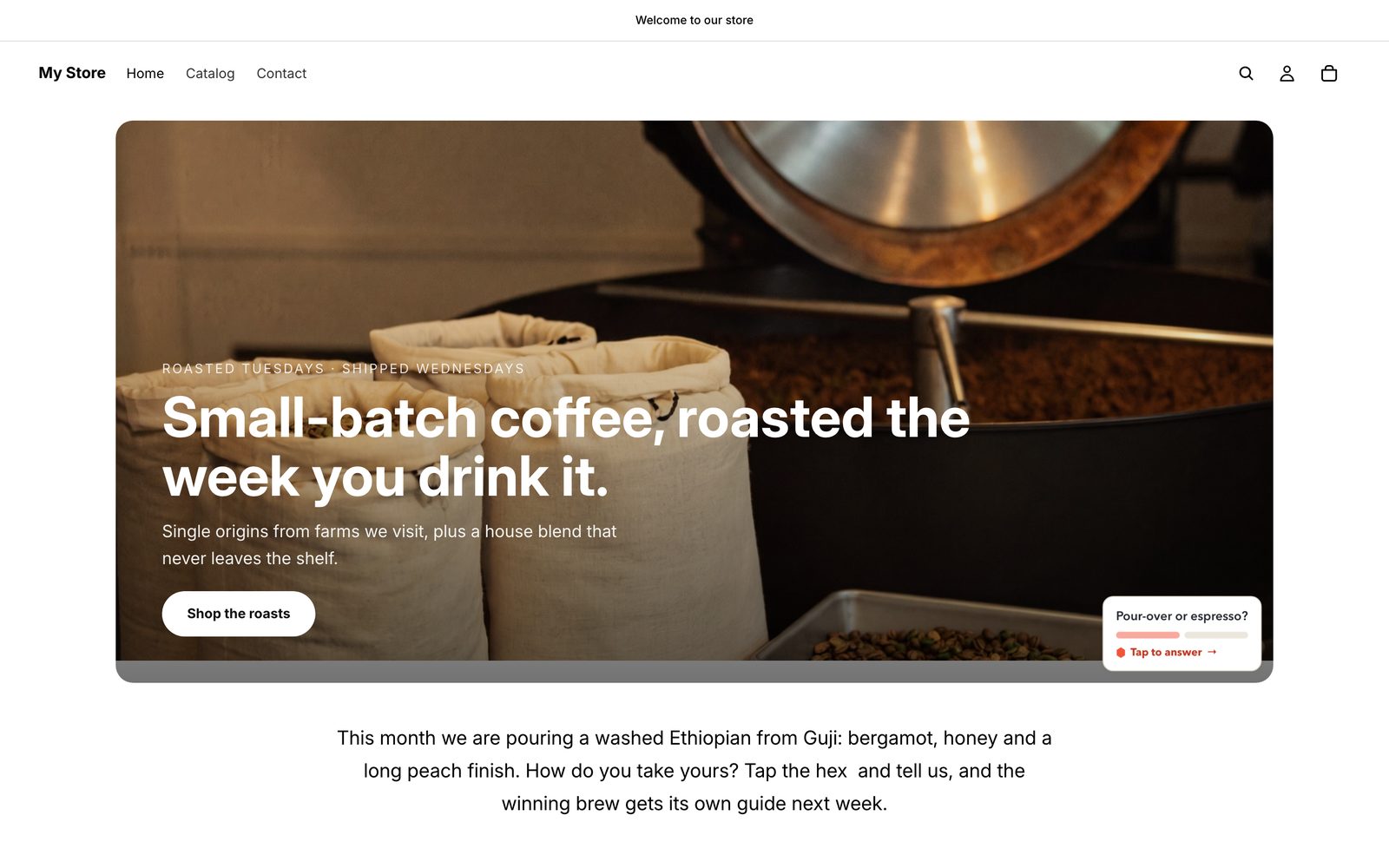
Inline, even mid-sentence
no placement attribute
The hex sits exactly where you put it, in the flow of the page. Because Custom Liquid accepts text as well as code, you can drop the snippet inside your own sentence and the hex reads like a word.
- From your Shopify admin go to Online Store → Themes and click Edit theme.
- Use the template dropdown at the top to pick the page you want (Home page, a product template, a blog post).
- In the left sidebar click Add section, or Add block inside an existing section, and choose Custom Liquid.
- Paste your snippet into the Custom Liquid box. For a mid-sentence hex, wrap it in a paragraph:
<p>Tell us how you feel about the new menu <script …></script> and we will read every answer.</p> - Click Save (on your live theme the button may say Publish; click that).
Use Custom Liquid, not a Rich text block. Rich text strips <script> tags on save, which is the most common reason nothing appears.
Did it work? The hex sits inside the sentence like a word, right under the hero. Tap it and the card opens over the page.
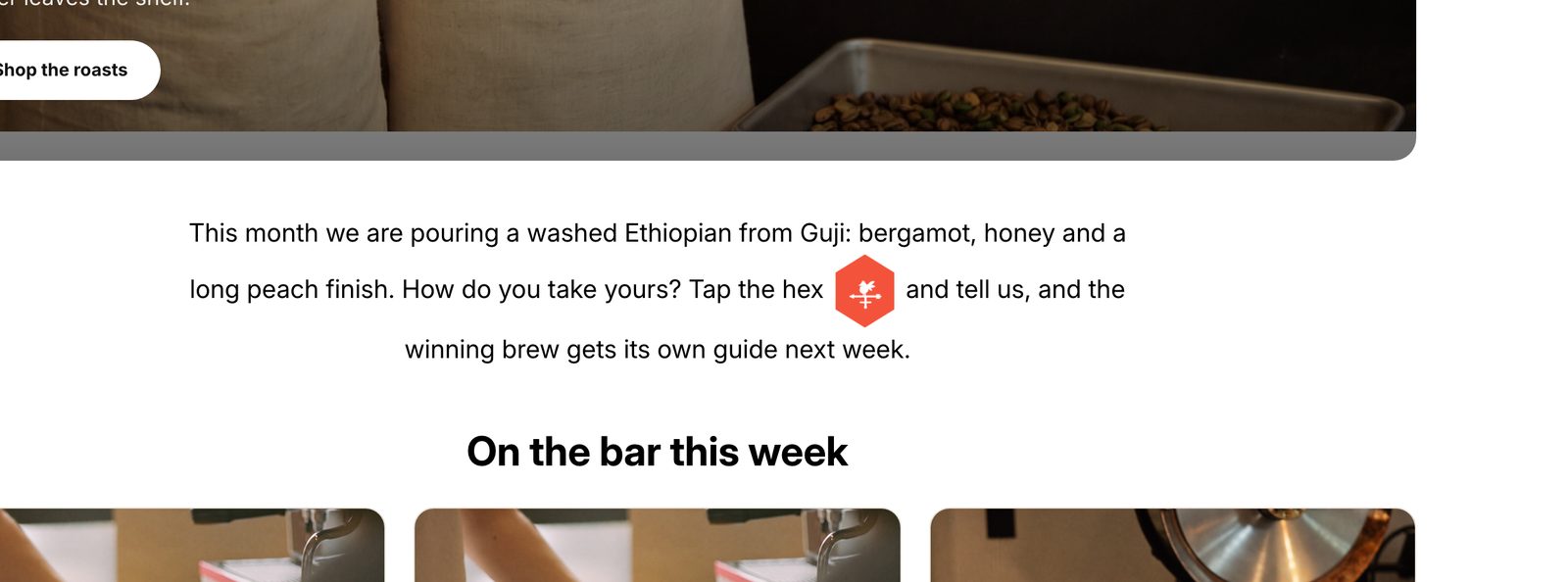
On a photo, in the corner you choose
data-place="over-br" (over-tl, over-tr, over-bl, over-br or over-c)
The hex pins to a corner of whatever box the snippet is inside. In Shopify the reliable way is to put the picture and the snippet in the <b>same Custom Liquid block</b>, so the box is the picture.
- In the admin sidebar, Content → Files: upload the photo and copy its link (the chain icon next to the file).
- Go to Online Store → Themes, click Edit theme, open the template, click Add section and choose Custom Liquid.
- Paste this, with your own image link and your snippet:
<div style="position:relative;max-width:820px;margin:0 auto"><img src="YOUR-IMAGE-LINK" style="width:100%;display:block"><script … data-place="over-br"></script></div> - Change
over-brto the corner you want (table above), then click Save (on your live theme the button may say Publish; click that).
Why not a Custom Liquid block under a normal Image block? Modern themes (Horizon, Dawn) wrap every block in its own box, so a snippet in the next block pins to its box, below the picture, not onto it. One block holding both is what actually works, and it is what we tested.
Want the whole hero, not just the photo? Put it all in the one block. This is the exact HTML behind our capture, with the snippet as the last line before the closing div:
<div style="position:relative;max-width:1200px;margin:0 auto;border-radius:18px;overflow:hidden">
  <img src="YOUR-IMAGE-LINK" alt="" style="width:100%;height:560px;object-fit:cover;display:block">
  <div style="position:absolute;inset:0;background:linear-gradient(180deg,rgba(0,0,0,.05) 30%,rgba(0,0,0,.55))"></div>
  <div style="position:absolute;left:48px;bottom:48px;right:200px;color:#fff">
    <h1 style="margin:0 0 14px;font-size:3rem;line-height:1.05">Your headline</h1>
    <p style="margin:0 0 20px;font-size:1.1rem;max-width:520px">One sentence under it.</p>
    <a href="/collections/all" style="display:inline-block;background:#fff;color:#111;border-radius:999px;padding:12px 26px;font-weight:600;text-decoration:none">Shop now</a>
  </div>
  <script async src="https://vaneit.com/embed.js" data-vane="your-vane-id" data-place="over-br"></script>
</div> Did it work? The trigger sits on the photo in the corner you picked, on desktop and on phones. Our hero is one Custom Liquid block: the roastery photo, the headline and the button are plain HTML in the same box, and the snippet is the last line, so the mini card pins to the photo's bottom-right corner.
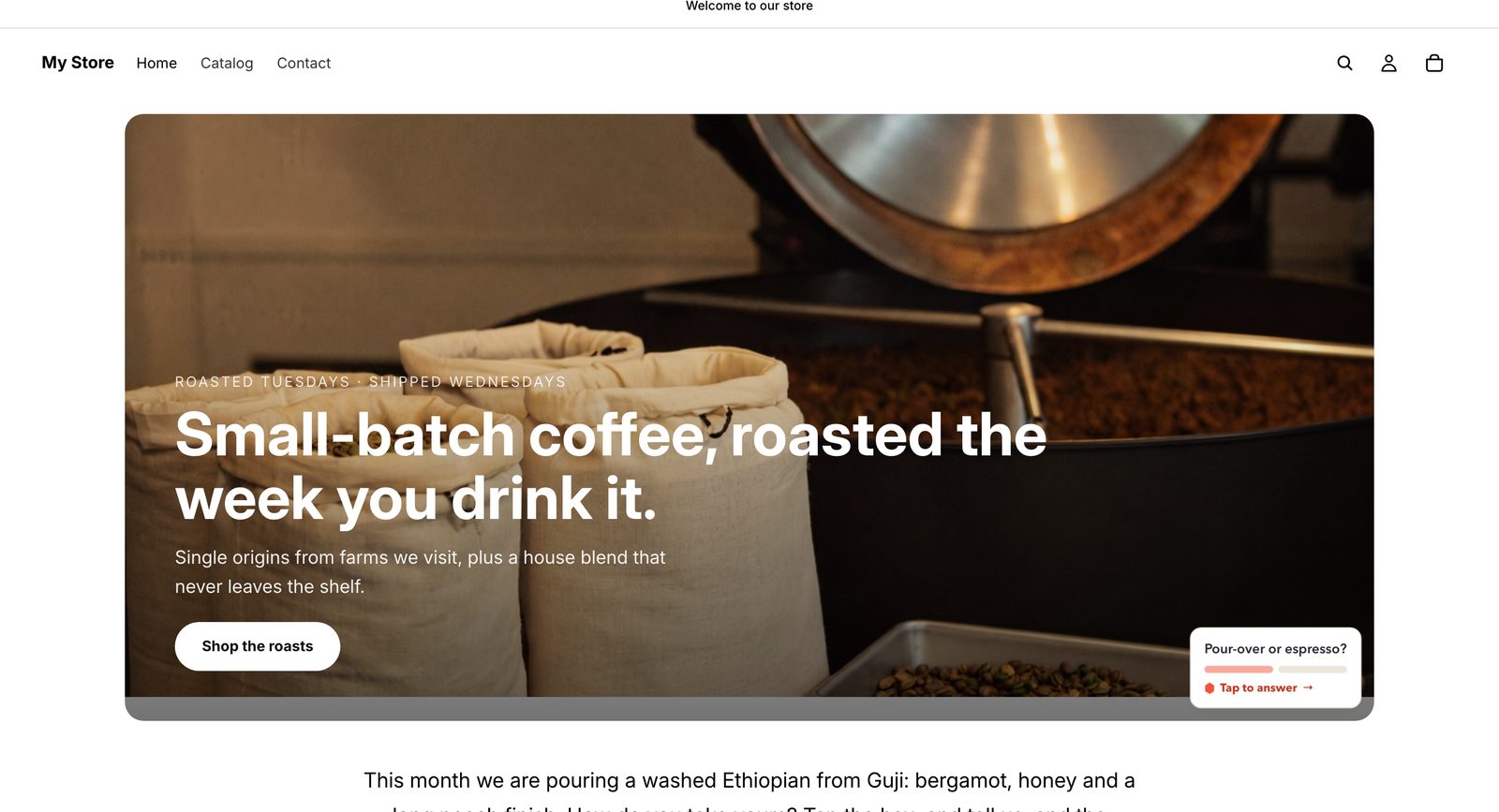
Floating on every page
data-place="float-br" or "float-bl"
The hex pins to the browser corner and follows the scroll. Added to the theme layout it appears on every page of the store, including collection and cart pages.
- Go to Online Store → Themes, click the ⋯ next to your theme, and choose Edit code.
- In the file list open Layout → theme.liquid.
- Scroll to the bottom and paste the snippet on the line directly above
</body>. - Click Save. It is live on the storefront immediately.
Duplicate your theme before editing code (⋯ → Duplicate) so you have a one-click way back. For a single page instead of the whole store, use a Custom Liquid block on that page with the same floating placement. Use float-bl if a chat bubble already lives bottom-right.
Did it work? Open any page of the store: the hex sits in the bottom-right corner of the window and stays there while you scroll, on desktop and on phones. Because it lives in theme.liquid, it shows on collection and cart pages too. In the capture the menu grid is scrolled into view and the hex is still in its corner.
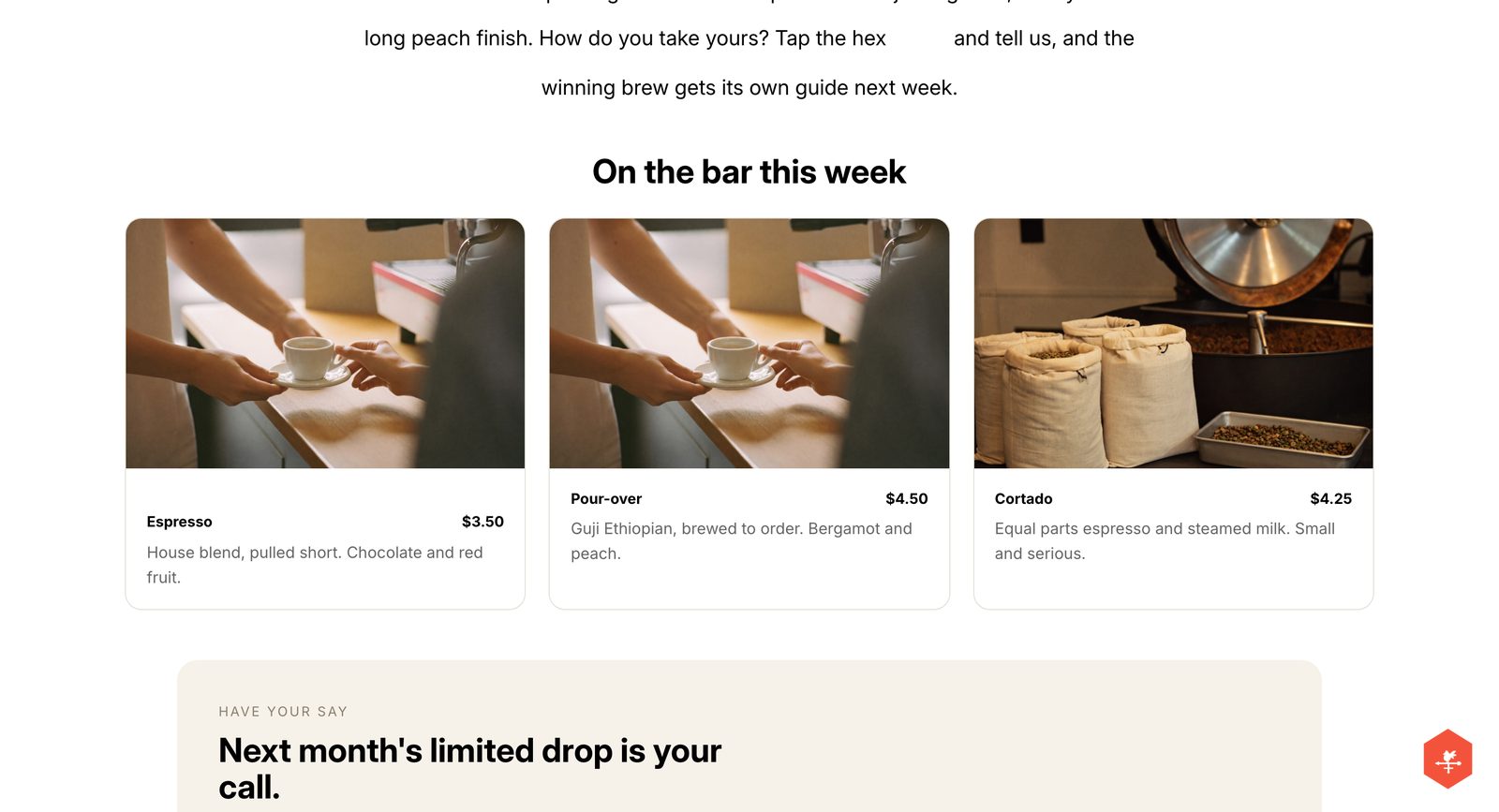
A full open section
data-place="section"
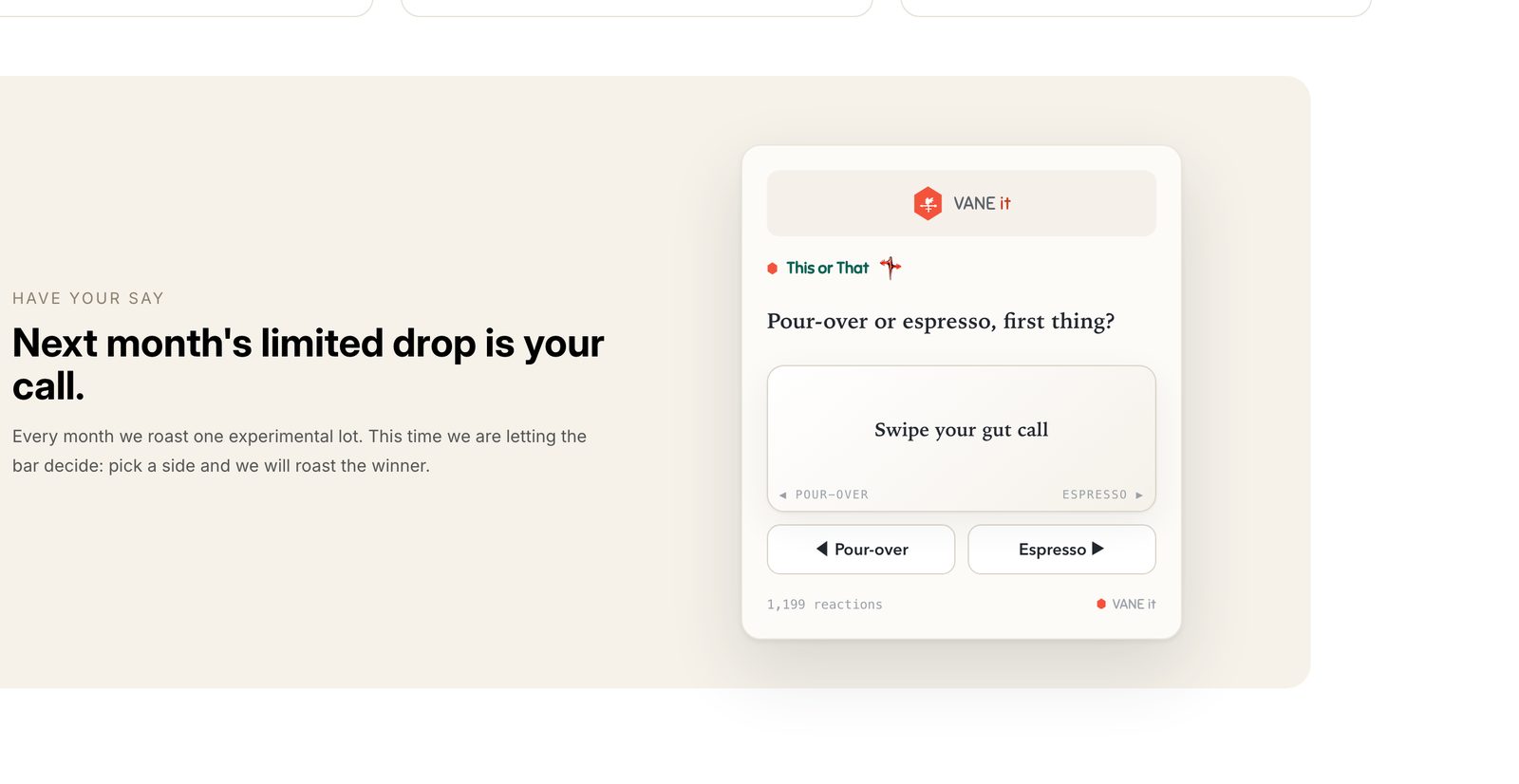
The card renders already open, votes live, with no button to press. Good between a product grid and your footer, or partway down a long landing page.
- Go to Online Store → Themes, click Edit theme and pick the template.
- Click Add section in the left sidebar and choose Custom Liquid.
- Paste the snippet, then drag the section to where you want it in the page order.
- Click Save (on your live theme the button may say Publish; click that).
Add it as a section, not a block inside another section. The card sizes itself to the box it is in, so if you want it centred and not too wide, wrap the snippet: <div style="max-width:520px;margin:0 auto">…</div>.
Did it work? The open card renders with the question and answers visible, and tapping an answer shows the tally. On our demo we added our own two-column layout around it (a short "Have your say" pitch on the left, the card on the right). On your store it will be just the card.
The iframe way, for anywhere scripts are off-limits
the "Embed anywhere (iframe)" code from your dashboard
Some places in Shopify will not run a script: product descriptions, blog post bodies, pages built with certain page-builder apps, email. The iframe version needs no script, so it goes anywhere an image tag goes.
- In your dashboard, open the vane and copy the code under Embed anywhere (iframe).
- Paste it wherever the editor accepts HTML: a Custom Liquid block, or the <> (show HTML) mode of a product description or blog post.
- Click Save (in the theme editor on your live theme the button may say Publish; click that). The card renders open inside its own box.
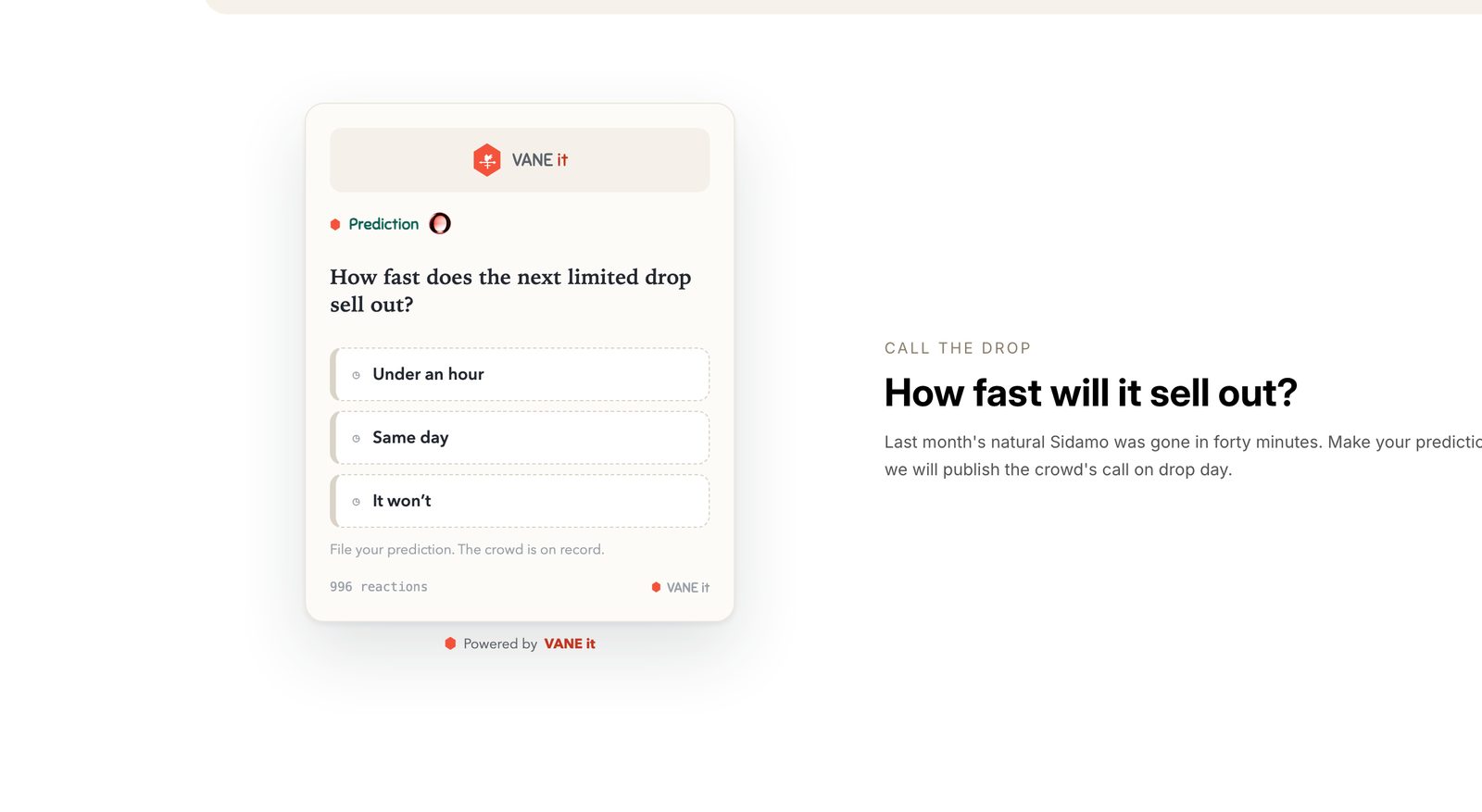
Change the height in the code (560 by default) if your card format is taller: rankings and tier lists want around 700. It cannot float or pin to a photo; use the script placements for those.
Did it work? The card appears in its box, live, and counts exactly like the others. On our demo we put it in our own two-column layout next to a short explanation of the prediction. On your store it will be just the card.
And on a phone
Same store, same blocks, no extra work. The mini card stays pinned to the corner of the hero photo as it shrinks, and the floating hex keeps its corner of the screen as you scroll.
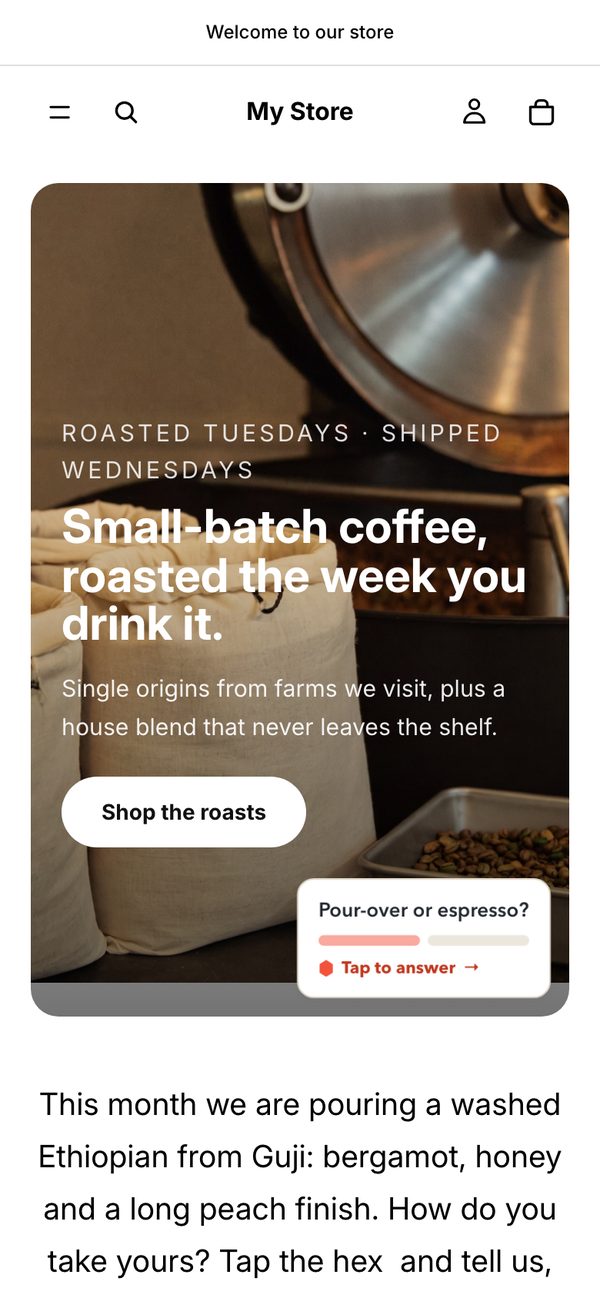
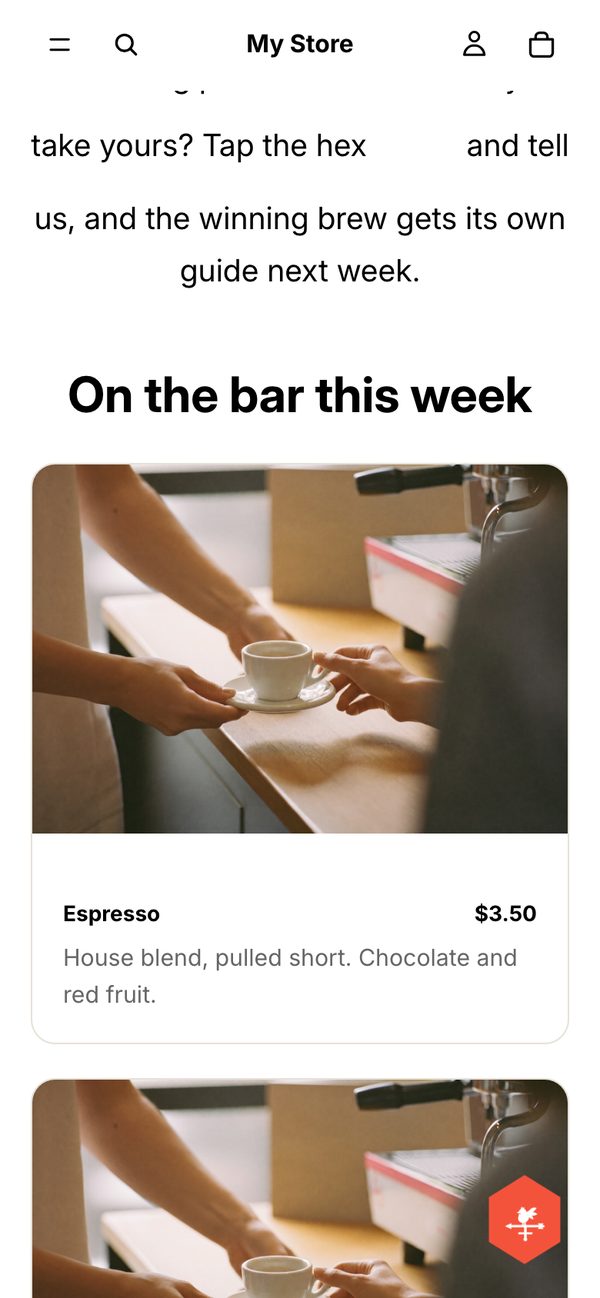
The "on the live store" images are captures of our Shopify test store (Horizon theme, September 2026), taken after following the steps exactly as written. The vane questions in them were staged for this guide; the store, the placements and the engine are real. The editor panels are labelled diagrams: Shopify's theme editor cannot be captured from outside a logged-in account, so we drew them rather than pass off mockups as screenshots.
Which store surface accepts what
| Where | How |
|---|---|
| Home page, landing pages | Theme editor → Add section → Custom Liquid. Drag it into position. |
| Product pages | Theme editor → open a product template → Add block → Custom Liquid. Added to the template it appears on every product using it, sharing one tally. |
| One specific product | Create a separate product template for it, then add the block there. Do not use the description field. |
| Blog posts | Theme editor → Blogs → Default blog post template → Add section → Custom Liquid. Appears on every post. |
| Every page of the store | Edit code → Layout → theme.liquid, above </body>. Best paired with a floating placement. |
| Cart and collection pages | Theme editor → open the Cart or Collections template → Add section → Custom Liquid. Appears on the cart, or on every collection using that template. |
Shopify no longer runs pasted scripts on checkout, Thank you or Order status pages on any plan (Additional scripts was retired in August 2025 for Plus and August 2026 for everyone else). Only Shopify apps built with checkout UI extensions can add content there. The snippet and the iframe cannot.
Common questions
Nothing shows up where I added the snippet. What do I check?
In order: confirm the vane is live in your VANE it dashboard; make sure you used a Custom Liquid block or section rather than a rich text block, because rich text strips script tags; click Save (or Publish) in the theme editor and hard refresh the storefront; if your store still has its password page on, enter the password or remove the password page first; and if you use a speed or script-manager app, allow vaneit.com in it.
Do I need an app from the Shopify App Store?
No. VANE it has no Shopify app. Everything here uses Shopify’s own Custom Liquid block, which is built into Shopify’s own free themes (Horizon, Dawn and the rest) and most modern paid themes, so there is nothing to install and nothing extra to pay for.
Will this work on my theme?
Shopify’s own free themes (Horizon, Dawn and the rest) and most modern paid themes have the Custom Liquid block and section. On an older vintage theme there is no Custom Liquid block, so use the Edit code route into theme.liquid instead.
Can I put a vane on a product page?
Yes, and it is one of the best places for one. Use a Custom Liquid block inside the product template rather than the product description field, because the description editor can strip script tags.
Will it slow my store down?
The snippet loads one small script in the background, so your page renders first and the vane arrives after. It never blocks rendering. The open-card placement appears after the page loads, so give its section a minimum height if you watch layout shift closely.
Can I show the same vane on every product page?
Yes. Add the Custom Liquid block to the product template rather than to one product, and it appears on every product using that template. One vane id means one shared tally across all of them.
How do I remove a vane?
Open the theme editor, select the Custom Liquid block, and click Remove block (or the trash icon), then Save. The tally and every reaction stay safe in your VANE it dashboard.
I edited my vane in the dashboard. Do I need to change the code in Shopify?
No. The snippet is permanent. Question, design, and trigger changes flow to every embed automatically, usually instantly.
Two minutes from your first reaction
Build a vane, copy one line, paste it into a Custom Liquid block. No app, no theme developer.
Start free On WordPress instead