Wix gives you two doors. A small Embed code element in the editor puts a trigger exactly where you drag it: on your hero photo, beside a heading, next to a paragraph. Custom code in the dashboard runs the snippet on every page, which is how you get the floating trigger. We built both on a real Wix site, on the free plan, while writing this; the "on the live site" pictures are captures from it.
On a photo or next to text: + Add → Elements → Embed → Embed code → paste the snippet → Apply → shrink it to about 180 × 100 → drag it into place → Publish. Floating on every page: publish your site once, then Settings → Development & integrations → Custom Code → + Add Custom Code → paste → Body - end → Apply.
These steps are for Wix Harmony, the current editor. In the classic Wix Editor the Embed code element is at Add Elements → Embed Code → Embed HTML, and you paste the snippet via Enter Code.
What works on Wix, and what does not
Wix keeps everything you embed inside its own sealed frame. That is good for security and it shapes what a vane can do here. The honest map, confirmed on a live free-plan site:
| Placement | On Wix | How |
|---|---|---|
| Trigger on a photo, beside a heading, next to text | Works | A small Embed code element you drag into place. The card opens in a compact window, because the box is sealed. |
| Floating corner, every page | Works | Custom code, Body - end. Worked on our free test site, though Wix says it needs a Premium plan (see below). Card opens over the page as normal. |
| Open card in a section | Works | Embed a site element with your hosted link, sized to the card. |
| Trigger mid-sentence, inside your own paragraph | Approximate | Wix text and embeds are separate elements, so park a small Embed element beside the sentence rather than inside it. |
Wix's help says Custom code needs a published site with a connected domain, which means a Premium plan. On our free test site it worked anyway: it accepted the snippet, showed "Applied on: All pages", and the trigger was live within a minute. But Wix can switch that off at any time. If your Custom Code dialog shows an upgrade notice instead, the two Embed elements below work on the free plan either way.
Get your snippet and your hosted link from the VANE it dashboard: open the vane, find Embed on your site, pick a placement, hit Copy code. Just below it, under Embed anywhere (iframe), the Copy link button copies your hosted link.
For Embed code (no placement)
<script async src="https://vaneit.com/embed.js" data-vane="your-vane-id"></script>
For Custom code (float-br)
<script async src="https://vaneit.com/embed.js" data-vane="your-vane-id" data-place="float-br"></script>
For Embed a site (your hosted link)
https://vaneit.com/v/?id=your-vane-id
Choosing where it goes
Two different controls, depending on the route. Custom code ignores the page layout entirely: the data-place value picks a corner of the browser window. Embed elements are the opposite: the snippet's placement no longer matters, and where you drag and size the element in the editor is where the card lives.
| Embed code (trigger) | The trigger sits at the top-left of the element, so make the element only a little bigger than the trigger (about 180 × 100) and drag it exactly where you want the trigger to be: a photo corner, beside a heading. Right-click → Arrange → Bring to front if it hides behind an image. |
| Custom code | float-br bottom-right of the window, float-bl bottom-left. Follows the visitor as they scroll, on every page you selected. |
| Embed a site (open card) | Card fills the element. Size it about 460 × 560 and give it its own column beside a heading. |
| Mobile | Open the mobile editor (phone icon, top right) and check each element: Wix keeps a separate mobile layout, so nudge the trigger back onto the photo if it drifted. The floating trigger needs no adjustment. |

A trigger on your photo, or anywhere on a page
the plain snippet, in a small Embed code element
This is the placement most people actually want: a small trigger sitting on the hero photo, next to a heading, or beside a paragraph, which opens the question when tapped. On Wix you do it with a small Embed code element that you drag wherever you like.
- In the VANE it dashboard open your vane, leave the placement on the default (no corner, no floating) and hit Copy code. This is the "For Embed code (no placement)" line shown above.
- In the Wix editor click the section you want it in, then + Add (top left) → Elements → hover More Options and scroll to Embed (or search "Embed") → drag Embed code onto the section.
- Click the element's Settings icon, paste the snippet into Enter HTML embed code and click Apply. If Wix asks what kind of cookies the code uses, choose Essential or Functional: VANE it only remembers, on the visitor's device, that they voted. The trigger appears inside the element.
- Drag the element's corner handle until the box is about 180 × 100. Then drag the whole element onto the corner of your photo, or next to your heading. Publish.
Wix seals every Embed element in its own frame, so a card cannot open on top of your page from inside that little box. Our widget knows this: when it is in a box too small for the card, tapping the trigger opens the vane in a small window instead. On phones that window opens as a new tab, and visitors come back to your page with the back button. Visitors answer there and the count updates on your page.
Did it work? The trigger sits on the photo exactly where you dropped it, on desktop and on phones, with the site's own heading and image around it. Tap it and the question opens in a compact window.
Floating on every page
data-place="float-br" or "float-bl"
The easiest placement on Wix. The trigger pins to the corner of the browser window and follows the scroll across every page you select. It runs from the dashboard, not the editor, so there is nothing to drag.
- Publish your site at least once first. Custom code only runs on a published site.
- From your Wix dashboard go to Settings → Development & integrations → Custom Code.
- Click + Add Custom Code (top right) and paste the "For Custom code (float-br)" snippet into the big box. Give it a name like "VANE it".
- Under Add Code to Pages leave All pages. Under Place Code in choose Body - end.
- Click Apply. That is it: no new Publish needed. Open your live site in a new tab and wait a few seconds. If the trigger is not there yet, hard-refresh the page: Cmd-Shift-R (Mac) or Ctrl-F5 (Windows).
It must be Body - end, not Head. Custom Code only runs on the published site, never in the editor, so do not judge it from there. If you also have a trigger on your hero, use float-bl so the two never share a corner on small screens.
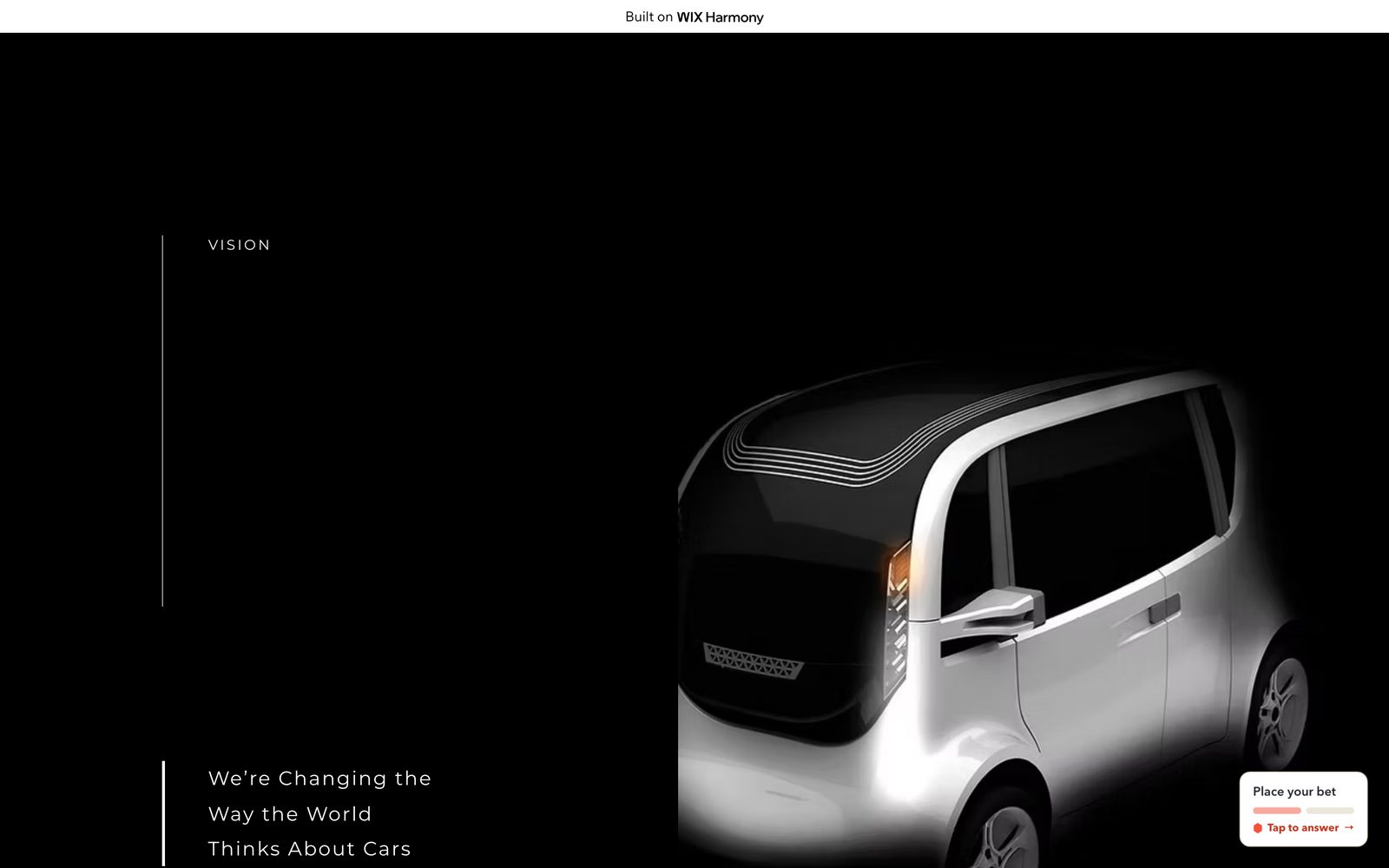
Did it work? On the live site the trigger sits in the bottom-right corner of the window and stays there as you scroll, on every page. In the capture the visitor has scrolled into the dark Vision section and the trigger is still there.
An open card on an inner page
your hosted vane link, in an Embed a site element
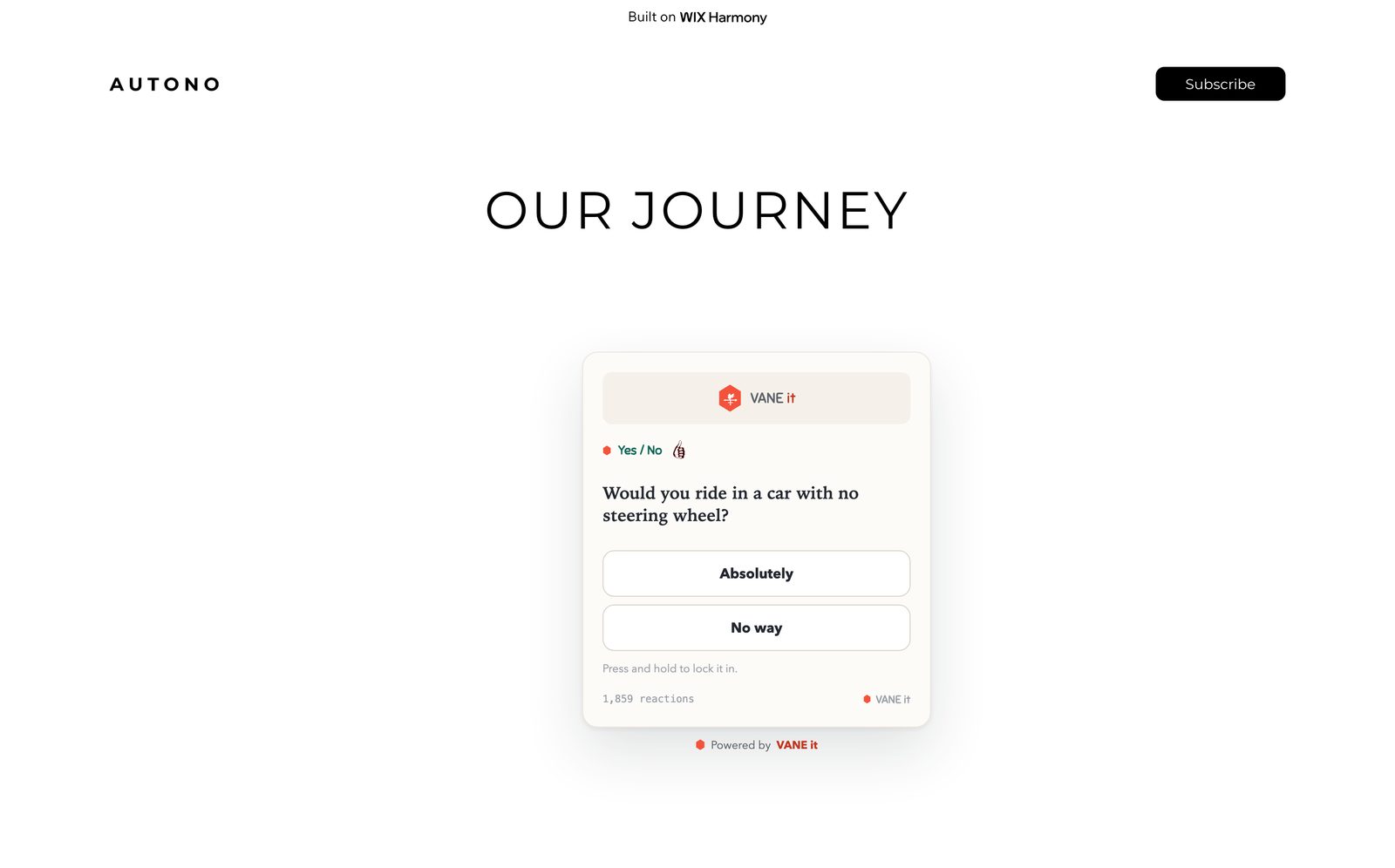
Sometimes you want the whole question on the page, not a trigger. Keep it off the home page: an About page, a story page, a post. Every vane has a hosted page of its own; drop that link into Wix's Embed a site element and the open card sits wherever you put the element. Ours is under the "Our Journey" heading of the About page.
- In the VANE it dashboard open your vane. On the vane page, under Embed anywhere (iframe), click Copy link. It copies a plain link that looks like
https://vaneit.com/v/?id=…. - Open the inner page in the Wix editor (the page name at the top of the canvas is a dropdown), click the section you want, then + Add (top left) → Elements → hover More Options and scroll to Embed (or search "Embed") → drag Embed a site onto the section.
- Click the element's Settings icon, paste the link into the Link field, and click Apply. If Wix asks what kind of cookies it uses, choose Essential or Functional: VANE it only remembers, on the visitor's device, that they voted.
- Pull the handles to about 460 × 560. Use the small arrow handle above the element to nudge it under your heading; it moves what is below it out of the way. Then Publish.
Treat the card like a photo in your layout: one heading, then the card, centred, with air around it. A card dropped into a busy hero reads as a widget; a card under a quiet heading on an inner page reads as design.
Did it work? The open card shows in the editor as well as on the published site, with its question and answers, and votes count in real time. In the capture it sits centred under the "Our Journey" heading at the top of the About page.
And on a phone
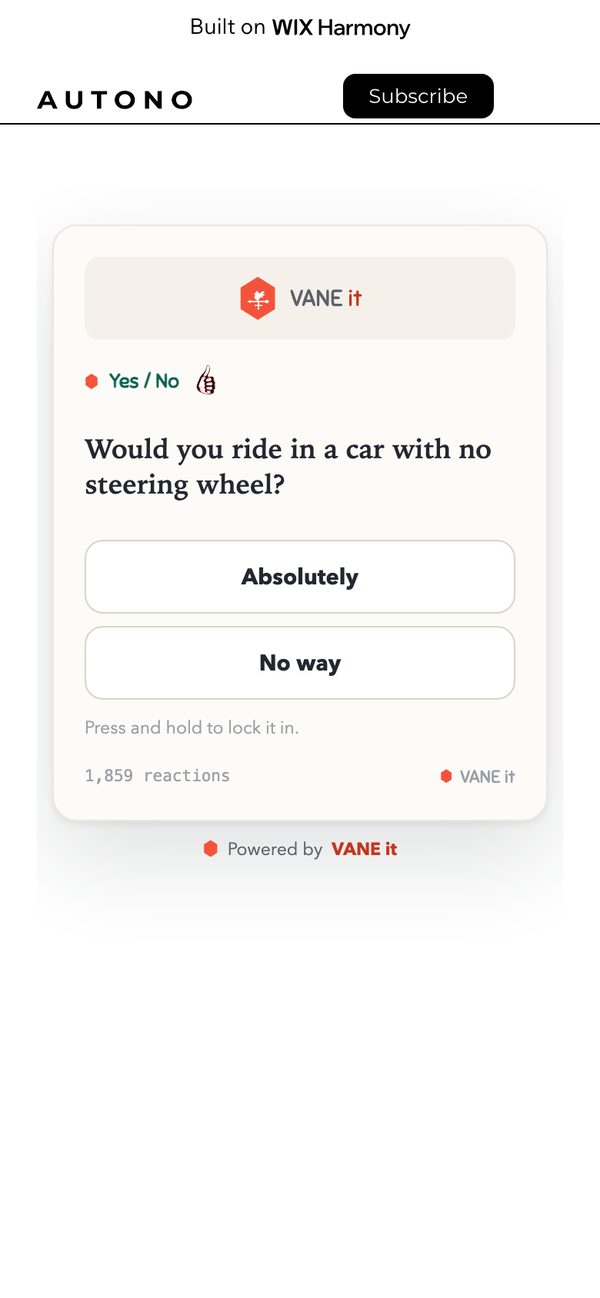
Same site, no extra work beyond a glance at the mobile editor. Wix moved the hero trigger to the left of the car on phones, and the About page card scales with its element.

The "on the live site" images are captures of our free-plan Wix test site (Harmony editor), September 2026. The vane questions in them were staged for this guide; the page, the placements and the engine are real. The editor panels are labelled diagrams: Wix's editor cannot be captured from outside a logged-in account, so we drew them rather than pass off mockups as screenshots. Every control name and step was followed exactly as written.
Common questions
Do I need a paid Wix plan?
Maybe. Wix's help says Custom code needs a published site with a connected domain, which means a Premium plan. On our free test site it worked anyway, but Wix can switch that off at any time. The two Embed elements work on the free plan either way.
Which route should I pick?
A trigger on a photo or beside a heading: a small Embed code element you drag into place. Floating in the corner of every page: Custom code. An open card as part of a section: the Embed a site element pointed at your hosted vane link. Most sites use the first two.
Why does the card open in a separate window on Wix?
Wix renders every Embed element inside its own sealed frame, and a 180 by 100 pixel frame cannot hold a card. So when the widget finds itself in a box that small, tapping the trigger opens the vane in a compact window instead of trying to squeeze the card in. On phones that window opens as a new tab, and visitors come back to your page with the back button. The floating trigger from Custom code is not boxed, so its card opens over the page like everywhere else. If you want the card itself on the page, use the Embed a site element.
The trigger is hiding behind my photo.
Right-click the Embed element and choose Arrange, then Bring to front. Wix stacks elements in the order they were added, so an element added after the photo normally sits on top, but a later change can push it back.
I added Custom Code but nothing floats.
Check four things. Your site must have been published at least once. Place Code in must be Body - end, not Head. Add Code to Pages must include the page you are looking at. And you must be looking at the published site, not the editor or its preview: Custom Code never runs inside the editor. Give it a minute after Apply, then hard-refresh the page (Cmd-Shift-R on a Mac, Ctrl-F5 on Windows).
The card looks cut off inside the Embed element.
The element is a fixed-size box and the card cannot grow past it. Select the element and drag its handles larger: about 460 wide by 560 tall fits every format with room to spare. The card centres itself inside whatever size you give it.
Do I have to Publish?
For the Embed elements, yes, like any other change in the editor. Custom Code is different: once your site has been published at least once, it goes live on its own within a minute of clicking Apply, with no new Publish needed. On our test site the floating card appeared about twenty seconds after Apply.
Will it slow my site down?
No. One small script loaded asynchronously, so the page renders first and the vane arrives after. Nothing render-blocking.
Two minutes from your first reaction
Build a vane, paste one line into Custom code, open your site.
Start free Other platforms