Installing VANE it on WordPress takes about two minutes, two ways: install the VANE it plugin and use its block, or paste your vane’s one-line snippet into a Custom HTML block. Both end the same place; the plugin just hides the code. Every screenshot below is from a real WordPress install.
With the plugin: add the VANE it block → paste your Vane ID → pick a placement → Publish.
Without it: + → Custom HTML → Edit HTML → paste snippet → Update → Publish.
Before you start
You need two things from your VANE it dashboard. Open your vane and find Embed on your site:
- For the plugin: the Vane ID. It is in the Vane ID box under the snippet, with a Copy ID button next to it.
- For the Custom HTML route: the snippet. Pick a placement and click Copy code. It is one line and looks like this:
<script async src="https://vaneit.com/embed.js" data-vane="your-vane-id"></script>
The vane must be set live (the green pill at the top of its page). A paused vane shows nothing on your site.
Which WordPress do you have? Self-hosted WordPress (at your own host, like SiteGround or Bluehost) works on every plan. On WordPress.com you need any paid plan (Personal or higher). Install the VANE it plugin first; that switches on the features that let WordPress.com accept code, and then both the block and the Custom HTML route work. The free WordPress.com plan cannot run scripts; use the hosted link in an iframe instead.
Your user role matters too. To paste code into a Custom HTML block you need to be an Administrator (or an Editor on a single site). For Authors and Contributors, WordPress removes script tags when the post is saved. The VANE it plugin’s block and shortcode work for every role.
The no-code way: the VANE it plugin
If you would rather never see a line of code, install our plugin. It adds a VANE it block to your editor: paste your Vane ID, pick a placement, publish. It also adds a [vaneit] shortcode for the Classic editor and page builders.
Plugin: step 1. In WordPress, go to Plugins → Add New Plugin → Upload Plugin, choose the zip you downloaded, click Install Now, then Activate Plugin.
Plugin: step 2. Edit any post or page, click +, and search vane. The VANE it block appears with our hex icon.
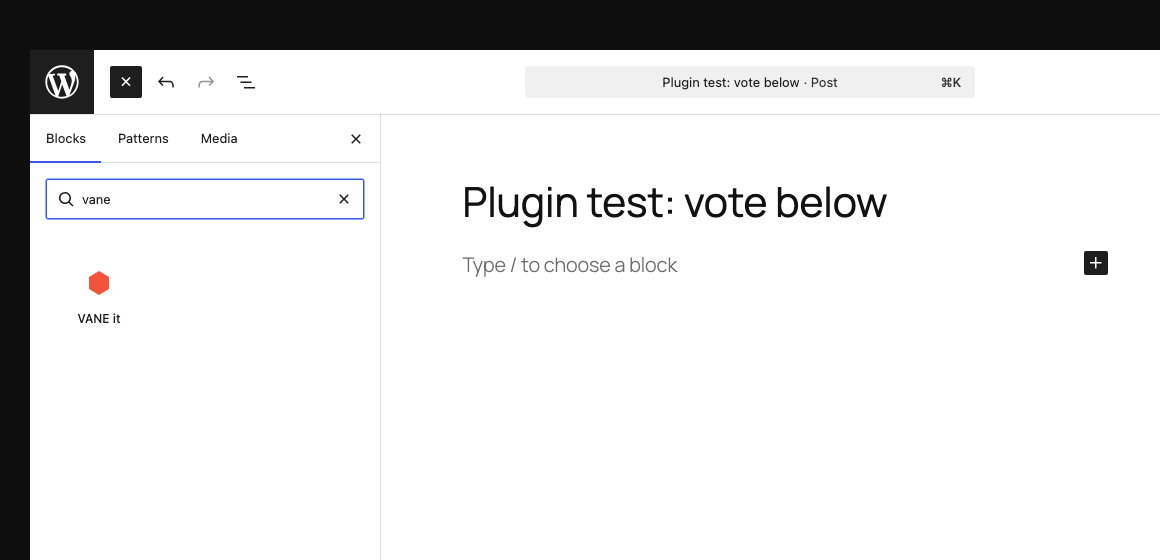
The VANE it block in the inserter once the plugin is active.
Plugin: step 3. Paste your Vane ID (or the entire snippet, we pick the ID out for you), pick a placement, and click Publish (or Save if the post is already live). That is the whole install. The block shows ✓ will render here once it has an ID; the vane itself appears on the published page.
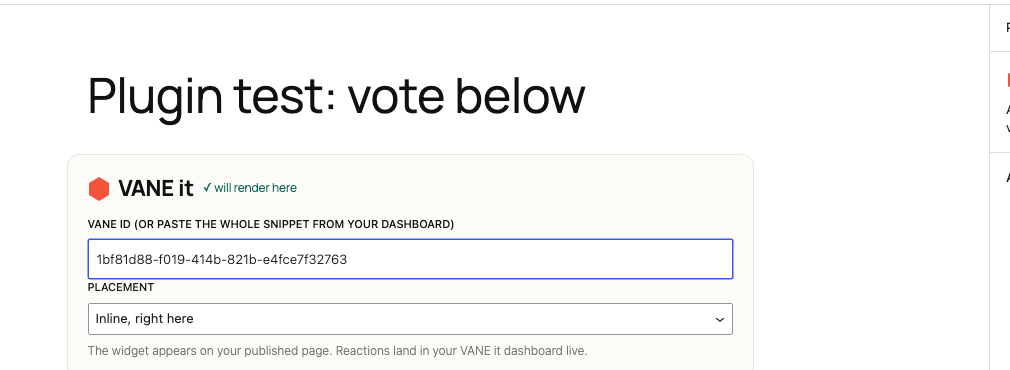
The block in the editor: ID pasted, placement picked, nothing else to do.
Safari unzips downloads automatically, so you may end up with a vaneit folder rather than a .zip. WordPress needs the zip. Two ways round it:
- Check your Downloads folder. The original
.zipis usually still there next to the expanded folder. Upload that one. - Or right-click the
vaneitfolder and choose Compress, then upload the zip that creates. Compress the folder itself, not the files inside it.
To stop it happening again: Safari → Settings → General → untick Open “safe” files after downloading.
Using the Classic editor or a page builder instead? The shortcode does the same job anywhere shortcodes work:
[vaneit id="your-vane-id" place="float-br"]
Leave place off for inline, or use one of these eight values: float-br, float-bl, over-tl, over-tr, over-bl, over-br, over-c, section. See them all working in the placement lab.
Prefer to paste the code yourself? The Custom HTML route below works on any WordPress that allows code, no plugin needed.
The Custom HTML way: put a vane in a post or page
Custom HTML: step 1. Edit the post. Click the + button in the top left corner and type custom html in the search box. Click the Custom HTML block that appears.
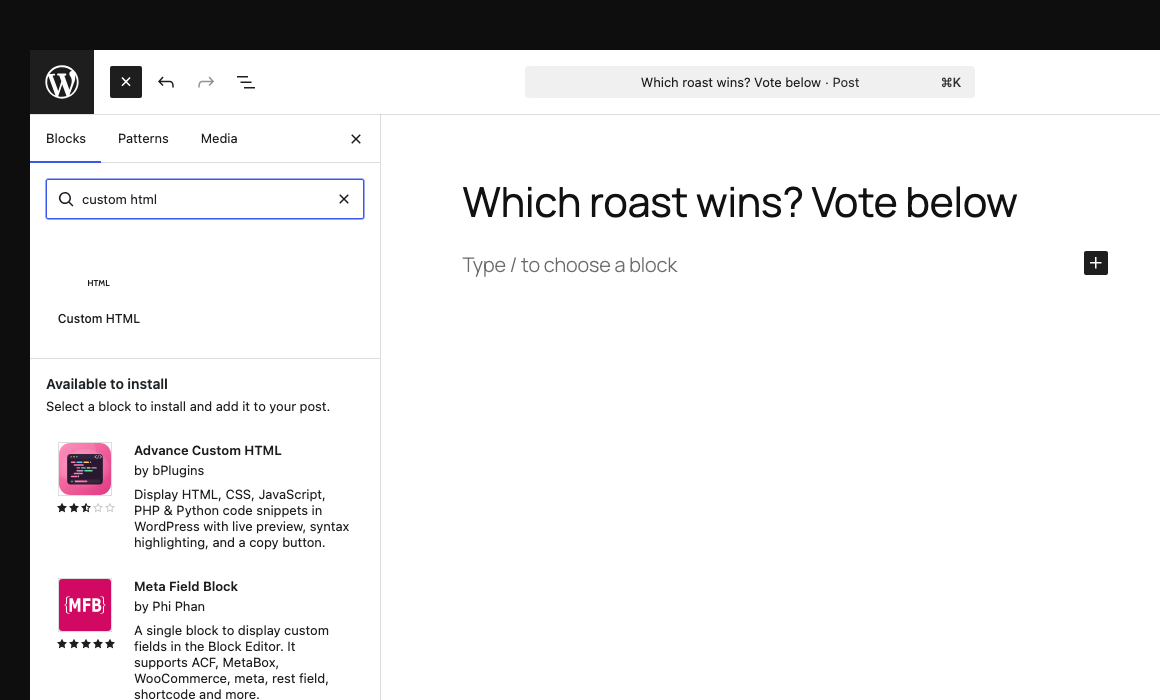
Searching for the Custom HTML block. Ignore the plugin suggestions below it; the built-in block is all you need.
Custom HTML: step 2. The block appears in your page with an Edit HTML button. Click it, paste your snippet into the HTML tab, and click Update. On older WordPress versions there is no popup; the block shows a text box right in the page, and you paste there instead. Same thing.
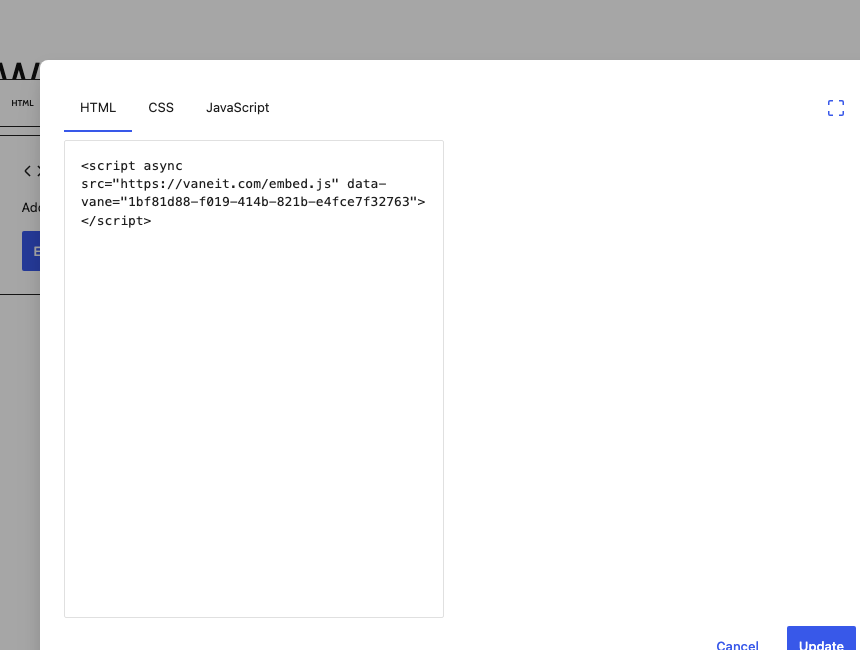
The snippet pasted into the HTML tab. Everything stays on the HTML tab; the CSS and JavaScript tabs stay empty.
Custom HTML: step 3. Click Publish (or Save if the post is already live). The vane renders right in your editor too, so you will see the button appear where the block sits. That is your confirmation it works before you even view the post.
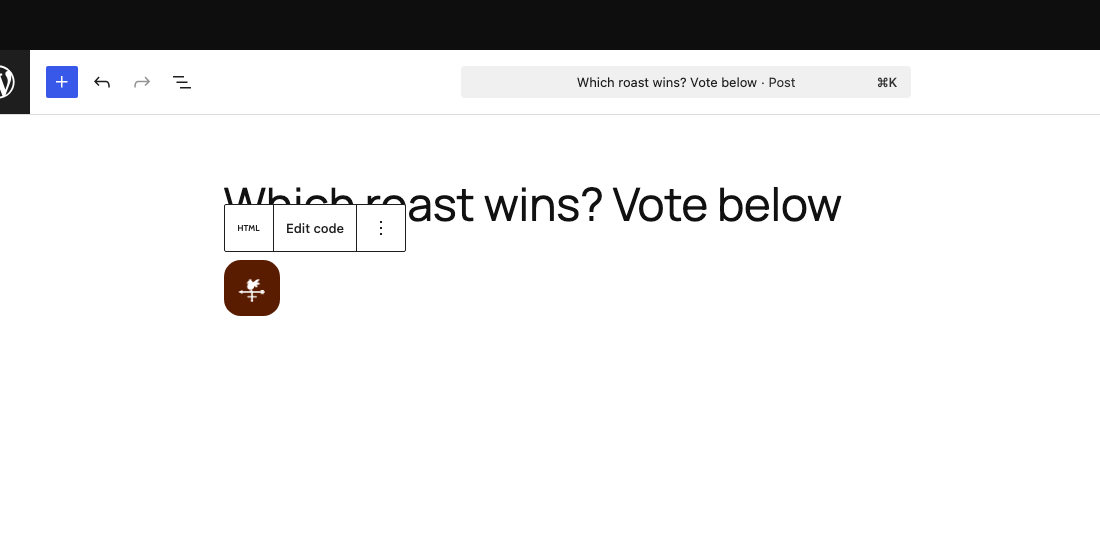
The vane rendering live inside the editor. This vane uses a custom accent color; yours wears whatever you picked in the builder.
Custom HTML: step 4. View your post. The button is live: visitors tap it, the card opens, they vote, and the crowd tally reveals. Every reaction lands in your dashboard in real time.
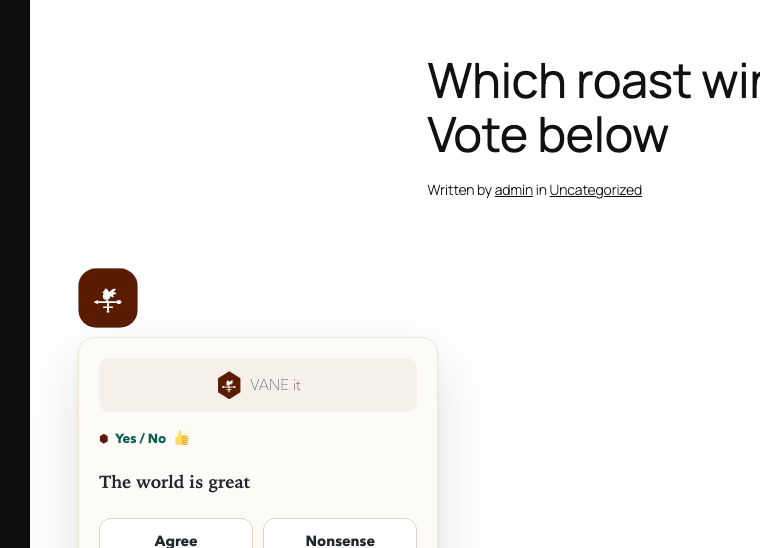
The open card on the published post.
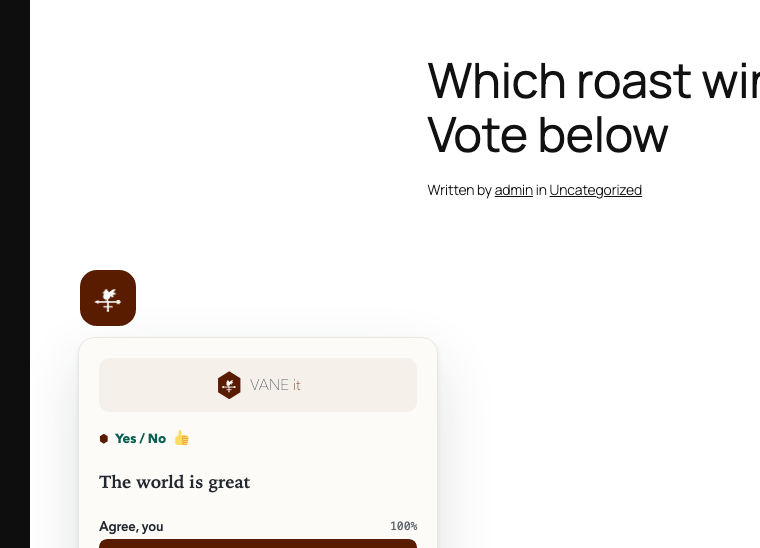
After the vote: the reveal, the tally, and the share row. This screenshot is a real vote from a real WordPress site.
Which placement goes where
This applies to both routes: the plugin’s placement picker and the snippet you copy use the same placements. Each one expects a particular kind of spot on the page, and two of them will look like nothing happened if you put them somewhere they cannot anchor to.
| Placement | Put it | What you get |
|---|---|---|
inline(no place) | Anywhere in the body copy, on its own line | The hex sits exactly where the line is, like a YouTube embed. Safest default. |
section | Its own row or block, with space around it | The full card, already open. No button to press. Treat it like a signup box. |
float-brfloat-bl | Anywhere on the page. Position does not matter | Pinned to the browser corner, follows the scroll. One per page. |
over-tl over-trover-bl over-br over-c | Immediately after an image, inside the same block, column or group | The hex pins to that corner of the image. Needs a container to sit on. See the warning below. |
Almost always one of these two:
- An
over-placement with nothing to sit on. These position themselves over their parent container. Dropped into a plain paragraph, the parent has no real size and the hex ends up invisible or in a strange spot. Group it with the image first, then place it in the same group. - The snippet pasted into a normal text block. A Paragraph block shows the code as plain text instead of running it. Use the VANE it block, the
[vaneit]shortcode, or a Custom HTML block, never a paragraph.
The other placements
Each placement below is a different snippet. Pick it on your vane’s page in the dashboard, copy, and follow the WordPress step for it. All of them live in the same Custom HTML block; only where you put the block changes. See every placement working at the placement lab.
Inside your text
no place attribute, Underlined word design
The vane sits inside a sentence as a short underlined phrase, not a button. Best when you want the question to feel like part of the writing.
- Open the post and click the + in the top left.
- Search custom html and click the Custom HTML block.
- Paste a whole paragraph into the block, with the snippet mid-sentence where the phrase should sit:
<p>Some words <script …></script> more words.</p> - Click Publish (or Save if the post is already live).
Pair it with the Underlined word design: Adjust this vane → Designs that fit in (paid plans). The label you set there appears inside your sentence with a dashed underline.
Did it work? In the editor the block shows your paragraph with the snippet in it. On the published post the label you set shows inside the sentence, in italics with a dashed coral underline, and tapping it opens the card. Your own words around it stay exactly as you typed them. Without the Underlined word design you get a small hex mid-sentence instead.
On an image
data-place="over-br" (or any corner)
The hex pins to a corner of your image. This is the one that needs care: it positions itself over its parent, so the image and the snippet must live in the same group.
- Add your Image block to the post first, as normal.
- Click the image, then the three dots in its toolbar and choose Group.
- Click the + inside that group, below the image, and add a Custom HTML block.
- Paste the snippet there and click Publish (or Save if the post is already live).
The snippet must sit inside the same group as the image. Placed in a plain paragraph it has nothing to anchor to and will not appear where you expect. That is the single most common cause of “nothing showed up”. If the Group is wider than the image or has padding, the hex sits on the Group’s corner. Keep the Group tight around the image.
Did it work? In the editor you see the image with the Custom HTML block tucked under it, both wrapped in one group outline. On the published page the hex sits on the image corner.
Floating in the page corner
data-place="float-br" or "float-bl"
The hex pins to the browser corner and follows the scroll. Where you paste it genuinely does not matter, only which page it is on.
- Open the post and click the + in the top left.
- Search custom html and add the Custom HTML block anywhere. The bottom of the post is fine.
- Paste the snippet, then click Publish (or Save if the post is already live).
- To float it on every page: block themes go to Appearance → Editor → Patterns → under Template parts open Footer, then add a Custom HTML block. Classic themes use Appearance → Widgets and drop a Custom HTML widget in a footer area.
Use one floater per page. Two of them fighting for the same corner looks broken, and readers stop seeing either.
Did it work? In the editor the block sits wherever you put it and looks unremarkable. On the published page the hex is pinned to the corner of the window and stays there as you scroll.
Open section
data-place="section"
The full card renders already open, votes live, with no button to press. Treat it like a newsletter signup box rather than a link.
- Open the post and click the + in the top left.
- Search custom html and add the Custom HTML block on its own row, with space above and below.
- Paste the snippet, then click Publish (or Save if the post is already live).
Do not put this one mid-sentence or beside an image. It wants a full-width row to itself.
Did it work? The card renders open in the editor as well as on the published page, so you can see the question and answer buttons before you publish.
WooCommerce
Product pages: if your product editor uses blocks, add the Custom HTML block in the description. If it uses the classic editor, switch to the Text tab and paste. Great questions there: a price gut check inline, or a Snap Judgment pinned to the product photo.
Order confirmation pages have no block editor, so they need one small hook. Put this in your child theme’s functions.php, or in a code snippets plugin, and swap in your vane id:
add_action( 'woocommerce_thankyou', function () {
  echo do_shortcode( '[vaneit id="YOUR-VANE-ID"]' );
}, 20 );
That prints the vane under the order summary, which is the highest-intent moment you have. It needs the VANE it plugin active, since it uses the shortcode. Edit theme files at your own risk and use a child theme so an update cannot overwrite it.
Using a page builder?
If your posts open into a builder rather than the standard WordPress editor, the VANE it block will not appear. Builders have their own element libraries and do not show WordPress blocks. Use the shortcode instead. It works in every one of them.
[vaneit id="YOUR-VANE-ID" place="float-br"]
Leave off place for inline, or use one of the eight values listed in the plugin section. Grab the ID from the Vane ID box on your vane page (the Copy ID button under the snippet), not the whole line.
| Builder | Where the shortcode goes |
|---|---|
| WPBakery (Visual Composer) | Add Element → Text Block, paste the shortcode. For a raw snippet instead, use Raw HTML. |
| Elementor | Drag in a Shortcode widget, or an HTML widget for the raw snippet. |
| Divi | A Text module for the shortcode, or a Code module for the raw snippet. |
| Beaver Builder | An HTML module works for either. |
| Classic editor | Paste the shortcode in Visual, or the raw snippet in the Text tab. |
Not sure which you have? Look at the address bar while editing a post. action=elementor means Elementor, et_fb=1 means Divi, and vc_action=vc_inline means the WPBakery front-end editor. Any of those means you are in a builder, not the WordPress editor.
Common questions
Nothing shows up where I pasted the code. What do I check?
Four usual suspects, in order. First, make sure the vane is set live in your VANE it dashboard. Second, if you use a caching plugin like WP Rocket, W3 Total Cache, or LiteSpeed, clear the site cache and reload. Third, some optimizer and security plugins strip or defer outside scripts; add vaneit.com to their allow list. Fourth, confirm you pasted into a Custom HTML block, not a Paragraph or Code block, and that your user role is Administrator (Authors and Contributors have script tags removed on save; the plugin block works for them).
The code shows up as visible text on my page instead of a button.
That means the snippet went into a Paragraph, Quote, or Code block, which display text rather than run it. Delete that block, add a Custom HTML block, and paste the snippet there instead.
Does this work on WordPress.com, or only self-hosted WordPress?
Both. Self-hosted WordPress (the kind at your own host, like SiteGround or Bluehost) works on every plan. On WordPress.com you need any paid plan (Personal or higher). Install the VANE it plugin first; that switches on the features that let WordPress.com accept code, and then both the block and the Custom HTML route work. The free WordPress.com plan cannot run scripts; use the hosted link in an iframe instead.
I pasted the code, saved, and it disappeared. Why?
Your WordPress user role is probably Author or Contributor. WordPress removes script tags when those roles save a post. To paste the code yourself you need to be an Administrator (or an Editor on a single site). The VANE it plugin's block and shortcode work for every role, so ask your site admin to install the plugin, then use the block.
Will the vane slow my site down?
No. The snippet loads one small script asynchronously, which means your page paints first and the vane arrives after. There is no iframe, no popup on arrival, and nothing render-blocking.
Can I put more than one vane on the same page?
Yes. Paste one snippet per vane, each in its own Custom HTML block, anywhere on the page. Each snippet is one line and they never interfere with each other.
I edited my vane in the dashboard. Do I need to update the code in WordPress?
No. The snippet is permanent. Question changes, design changes, and trigger changes all flow to every embed automatically within the hour, usually instantly.
How do I remove a vane from a page?
Delete the Custom HTML block (or VANE it block) that holds it, then click Save. The tally and all reactions stay safe in your dashboard.
I use Elementor, Divi, or the Classic editor. Where do I paste?
Easiest: install the VANE it plugin and use the [vaneit id="..."] shortcode, which works in all of them. Or paste the snippet directly: Elementor in an HTML widget, Divi in a Code module, Classic editor in the Text tab, WPBakery in a Raw HTML element.
Is the plugin required?
No. The plugin and the Custom HTML block produce the exact same embed. The plugin is just friendlier: a placement picker, no code on screen, a shortcode for builders, and it works for every user role. Pick whichever suits you.
Two minutes from your first reaction
Make a vane, copy the line, paste it in a Custom HTML block. The argument starts today.
Start free See every placement live